How to Connect Your Wix Site to SEOmatic
Written By Minh
Last updated 6 months ago
Minimum Requirements
A Wix account with site owner or co-owner access
A Wix site with the relevant apps installed (Wix Blog, Wix Stores, and/or CMS)
Setting Up Your Wix App
Before connecting, you need to generate an API key from your Wix account.
Go to the https://manage.wix.com/account/api-keys and log in with your Wix account.
Click Generate API Key, give it a name (e.g. SEOmatic) and select the permissions you need:
Manage Blog - blog draft posts (create, update, publish)
Manage Ricos Document - HTML to Ricos conversion for blog content
Manage Data Items - create/update CMS collection items
Read Data Collections - list and inspect CMS collection schemas
Manage Products - create/update store products and info sections
Read Products - query and fetch individual products
Read Categories - blog categories and store categories
Read Members - list site members for author selection
Read Tags - list blog tags for tag assignment
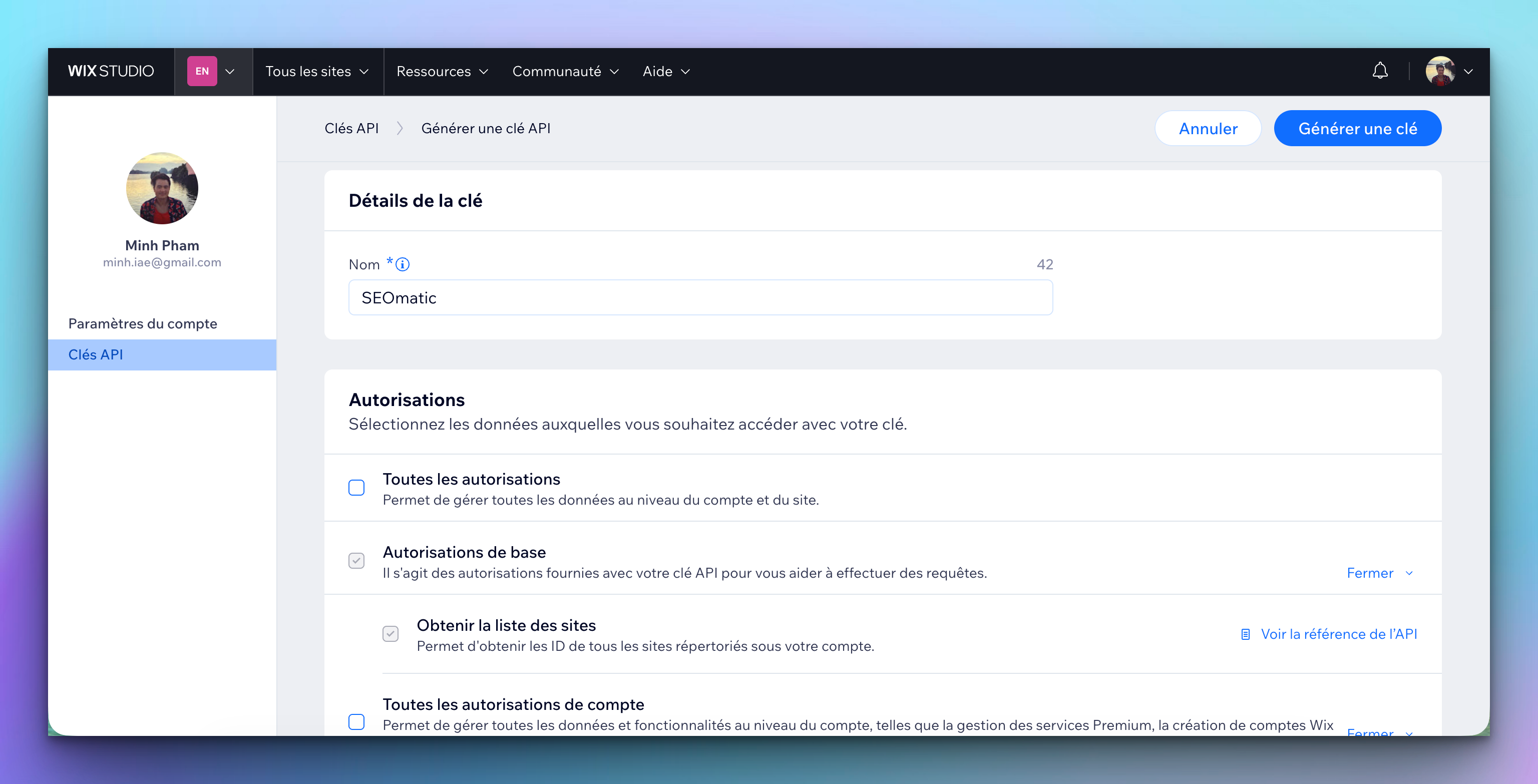
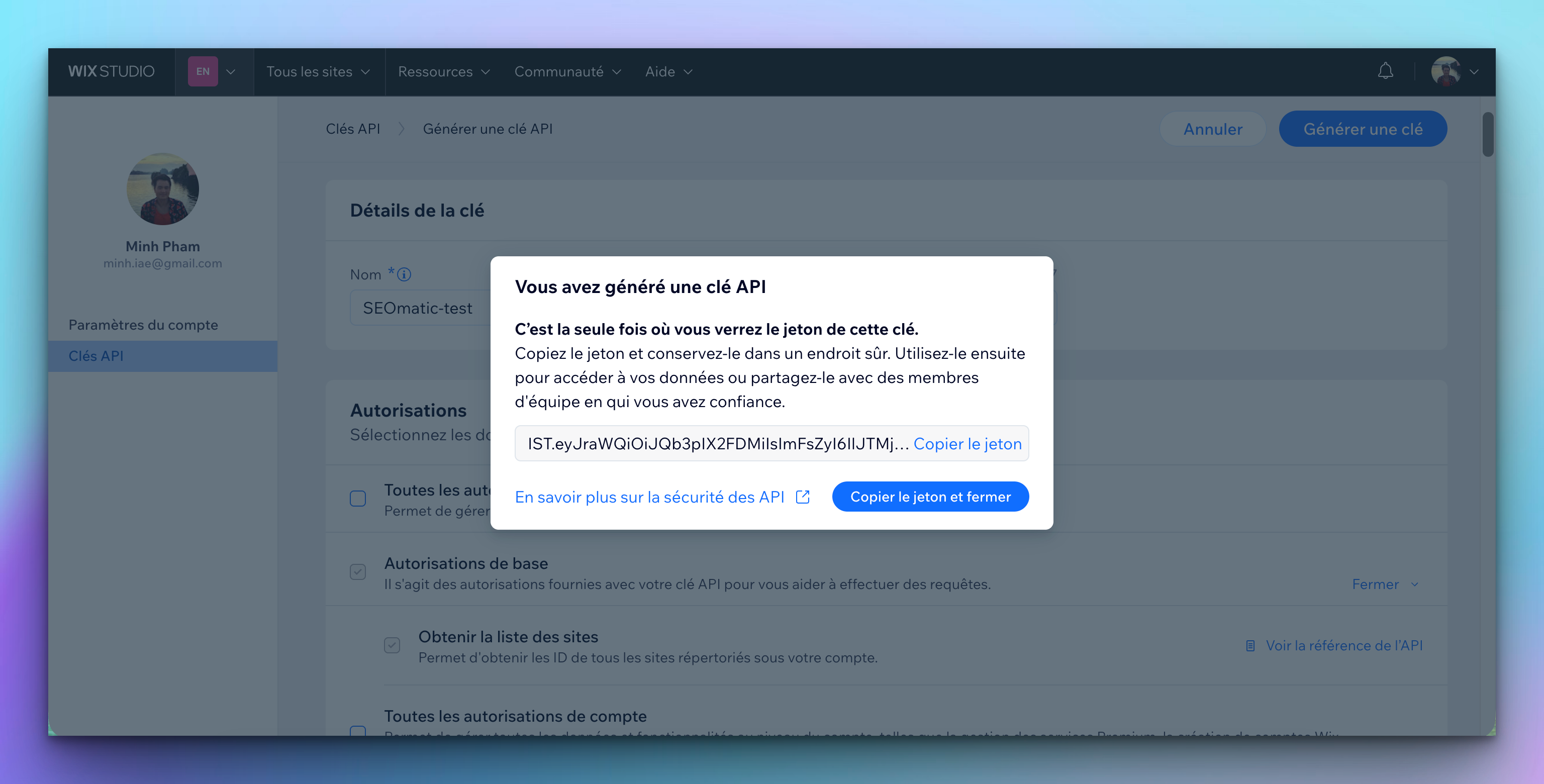
Copy the API Key (it starts with IST.eyJ...) and save it somewhere secure — you won't be able to see it again.
Get your Site ID from your Wix dashboard URL: manage.wix.com/dashboard/{site-id}/...
Step 1: Go to Connections
In your SEOmatic dashboard, go to Connections from the sidebar (or click the "Missing connection" warning in the header if you see one).
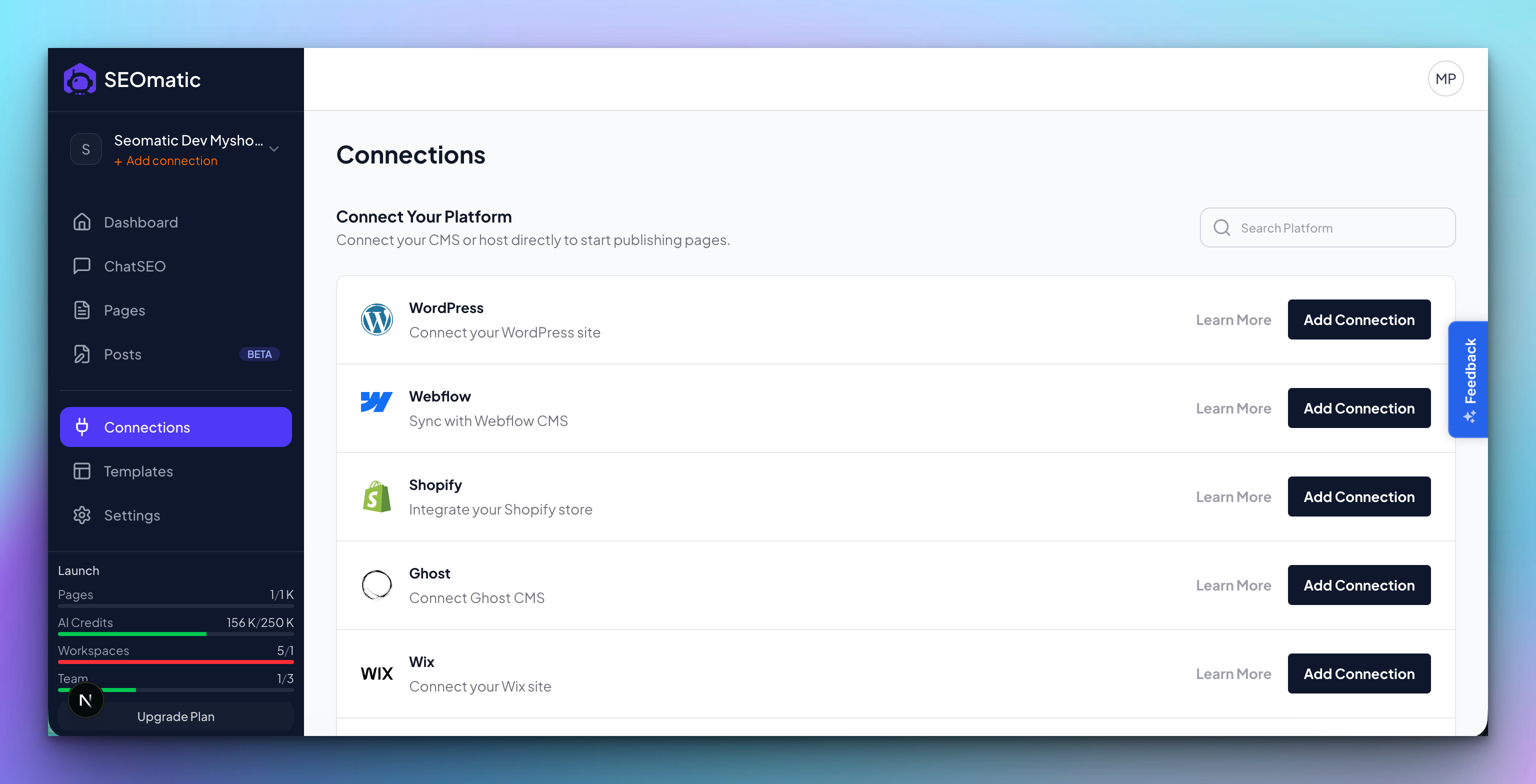
Step 2: Enter Your Credentials
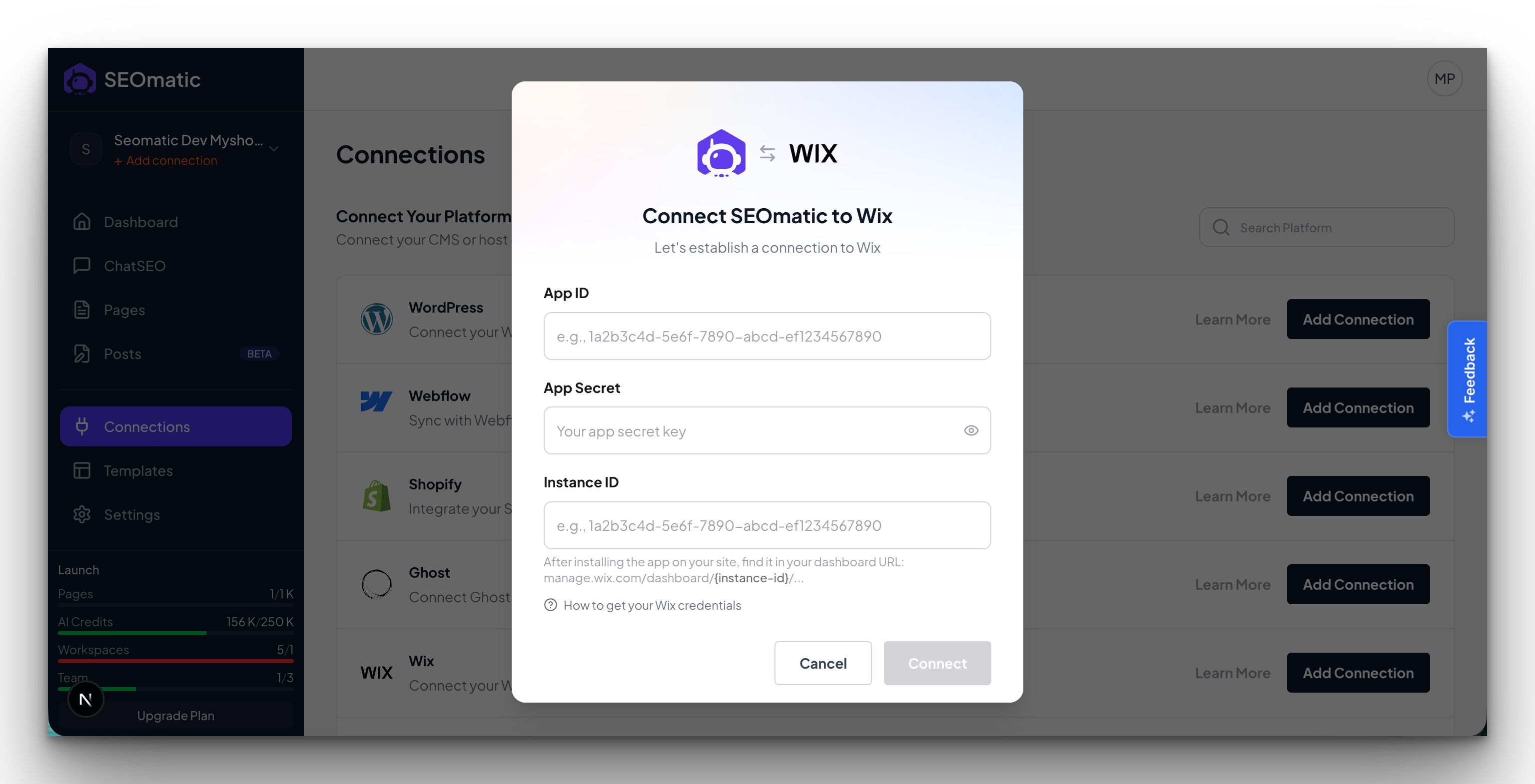
Click Connect Wix and fill in your App ID, App Secret, and Instance ID.
SEOmatic will automatically validate your credentials as you type. If any permissions are missing, you will see a warning.
Click Connect.
Step 3: You're Connected
On the Connections page, you should now see your Wix site listed with a green "active" status - that means you're connected and ready to publish.
Troubleshooting
Still need help? Share an idea