How to Use SEOmatic with Elementor Pro and ACF
Written By Minh
Last updated 6 months ago
SEOmatic lets you generate and publish hundreds of pages from a single Elementor template. You design the layout once, use ACF fields for dynamic content, and SEOmatic fills each page with unique content at scale.
Minimum Requirements
Elementor Pro installed and activated (Dynamic Tags require Pro)
ACF 5+ (Advanced Custom Fields) by WP Engine installed and activated
ACF Field Key plugin by SEOmatic
A WordPress connection configured in SEOmatic
Step 1: Create a Custom Post Type
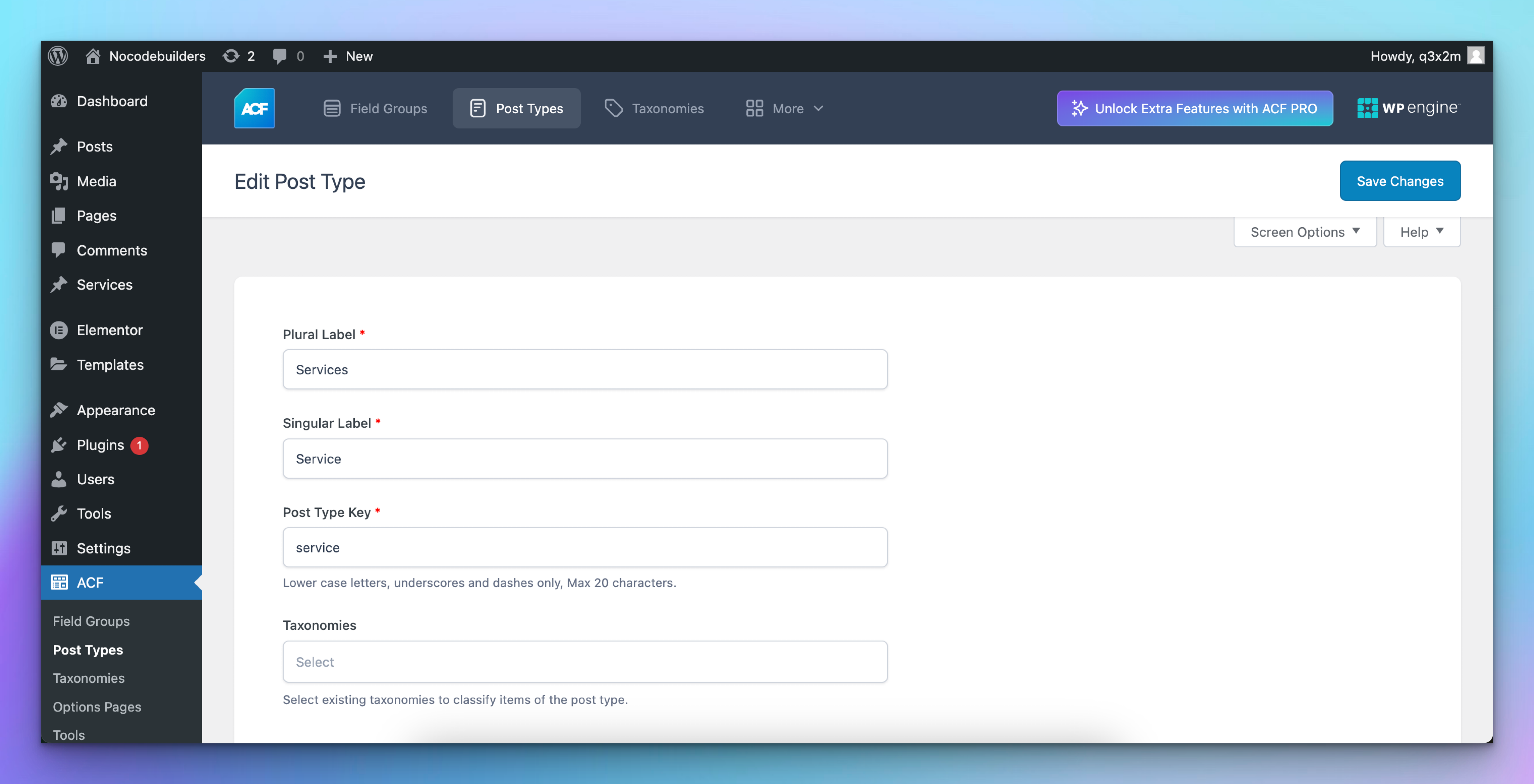
In your WordPress admin, go to ACF > Post Types and create a new post type (e.g. "Services"). This will store all the pages created from your template.
Leave the Advanced Settings at their default values.
Step 2: Create Your ACF Fields
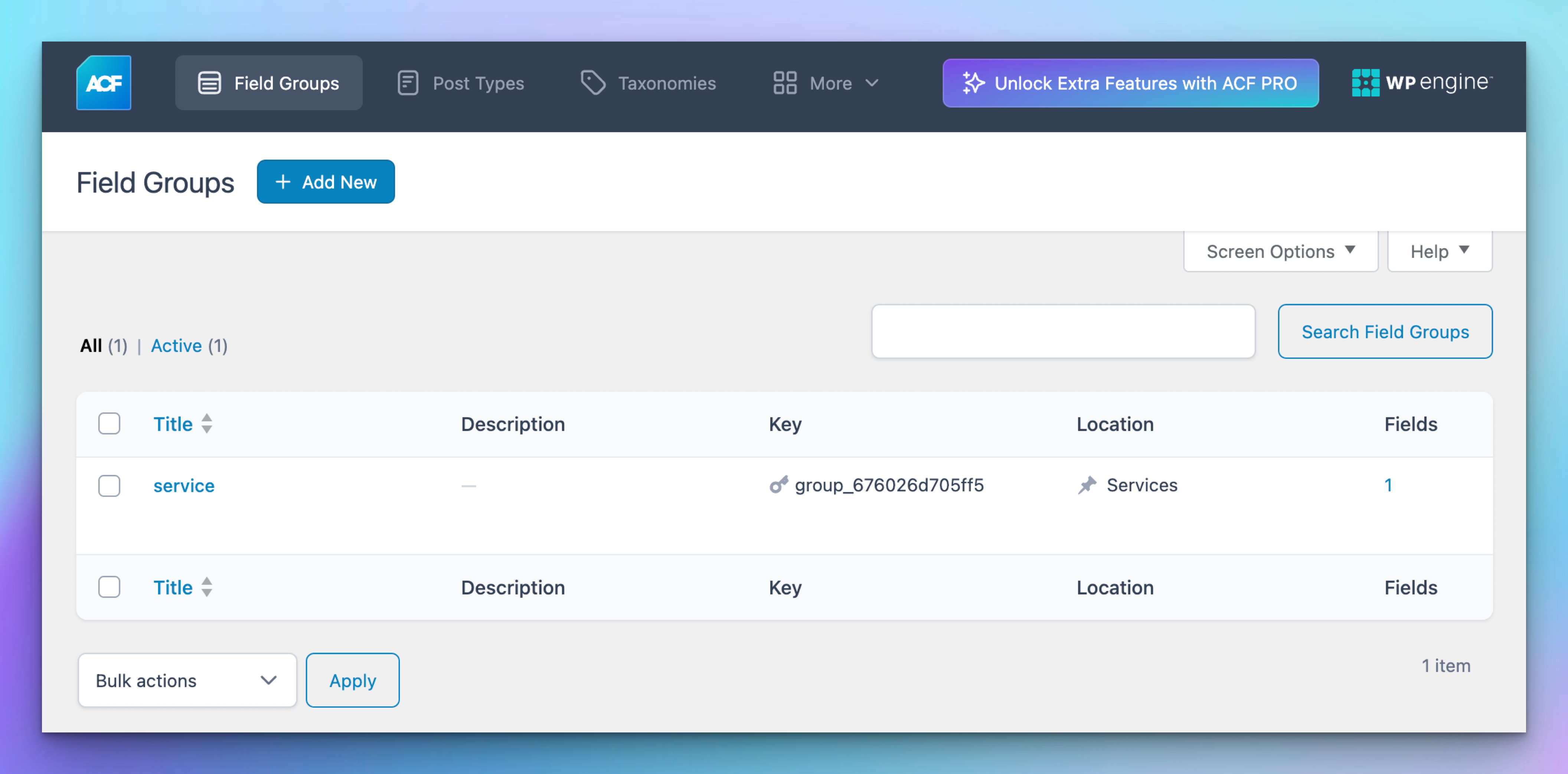
Go to ACF > Field Groups and create a new group (e.g. "Service Fields"). Add a field for each dynamic element in your template.
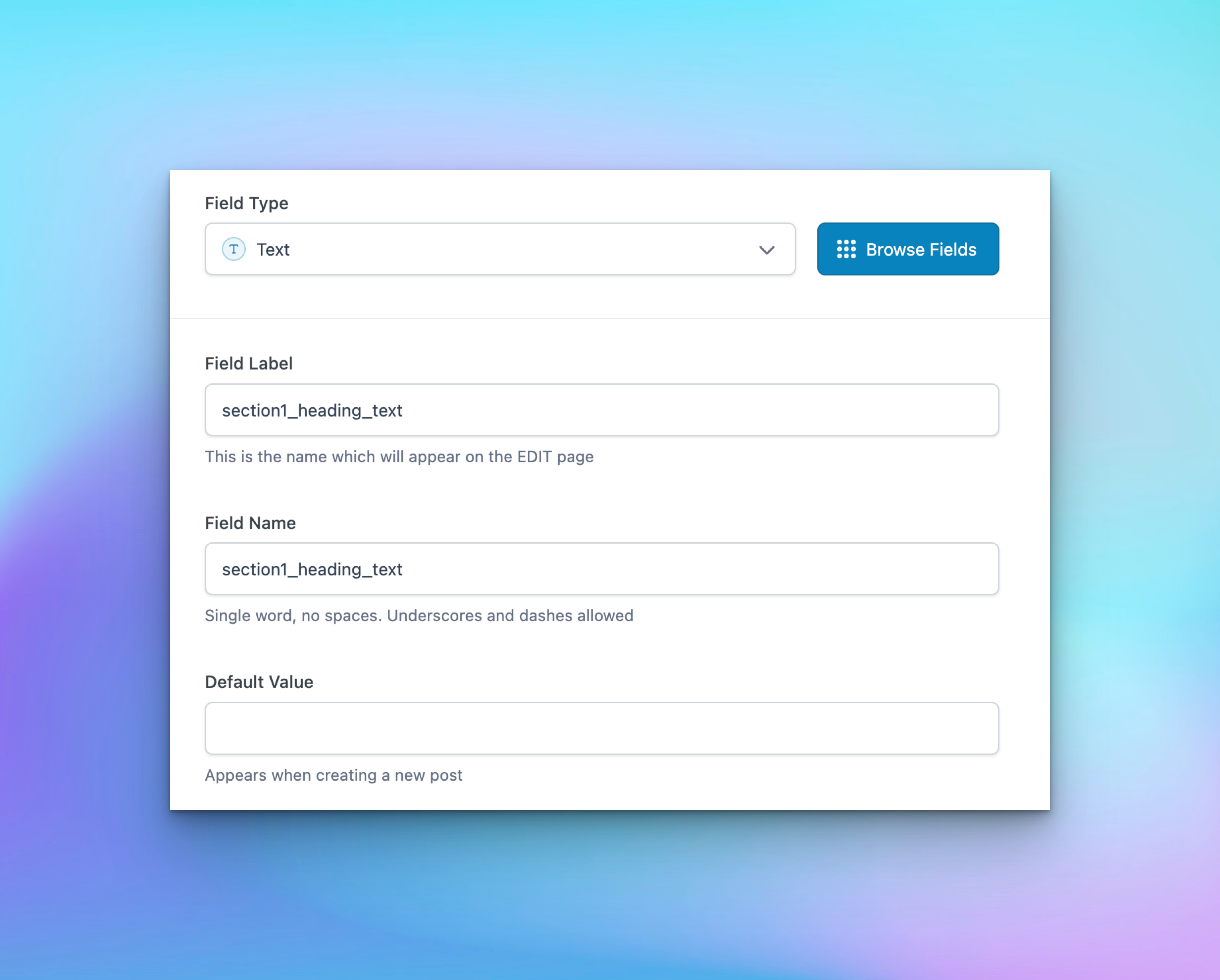
Make sure the Field Label and Field Name are exactly the same.
Naming convention: Use sectionX_fieldtype_suffix with underscores, not hyphens. For Text fields, the suffix controls the input type in SEOmatic:
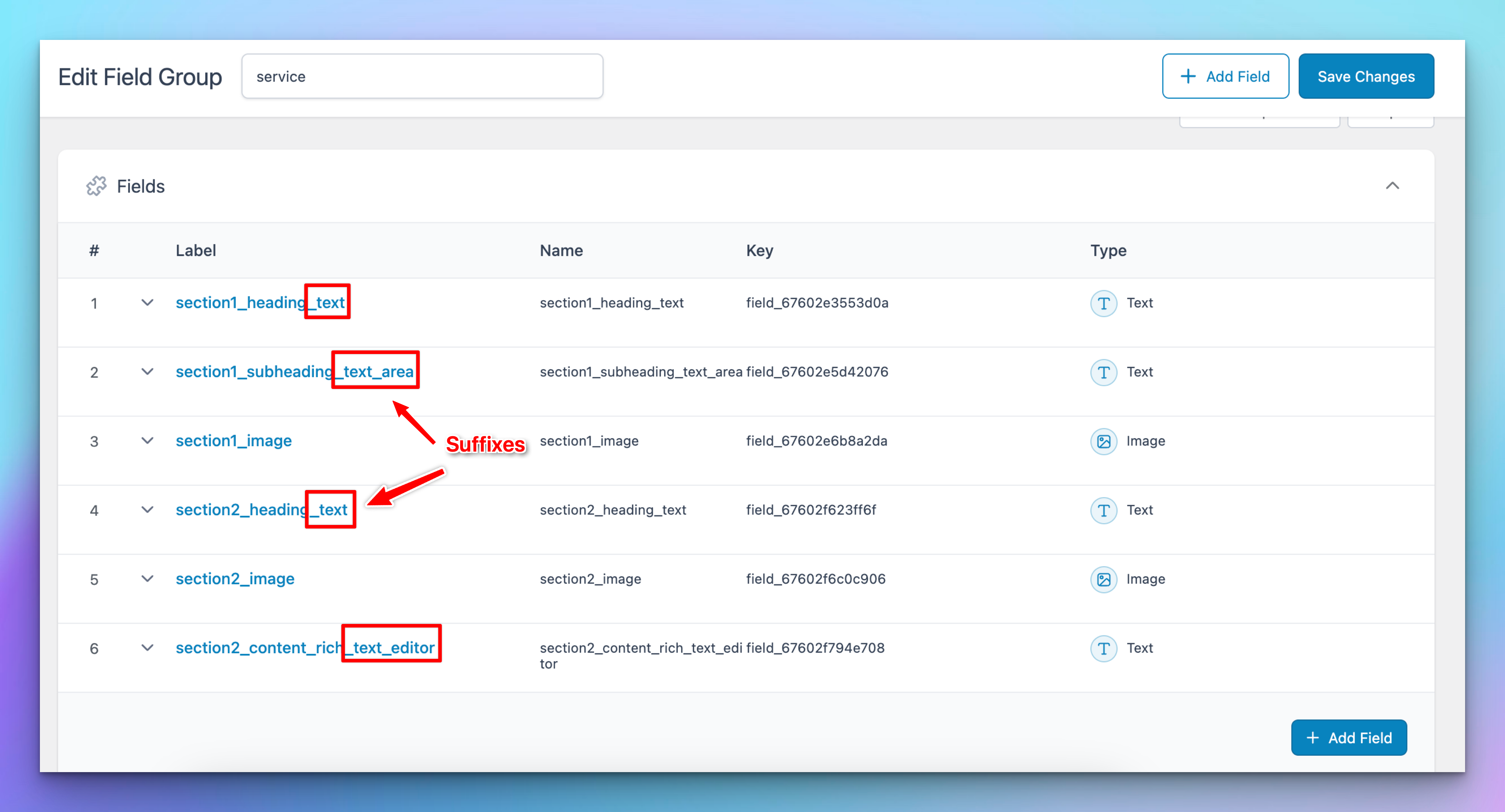
Supported field types: All types under the Basic and Content categories (up to oEmbed). Repeater fields and Flexible Content are not supported by Elementor's native Dynamic Tags.
For Image fields, set the return format to Image ID (not Image URL) - both Elementor and SEOmatic need this format to display images correctly.
Step 3: Configure the Field Group Settings
Still in your field group, scroll down and configure:
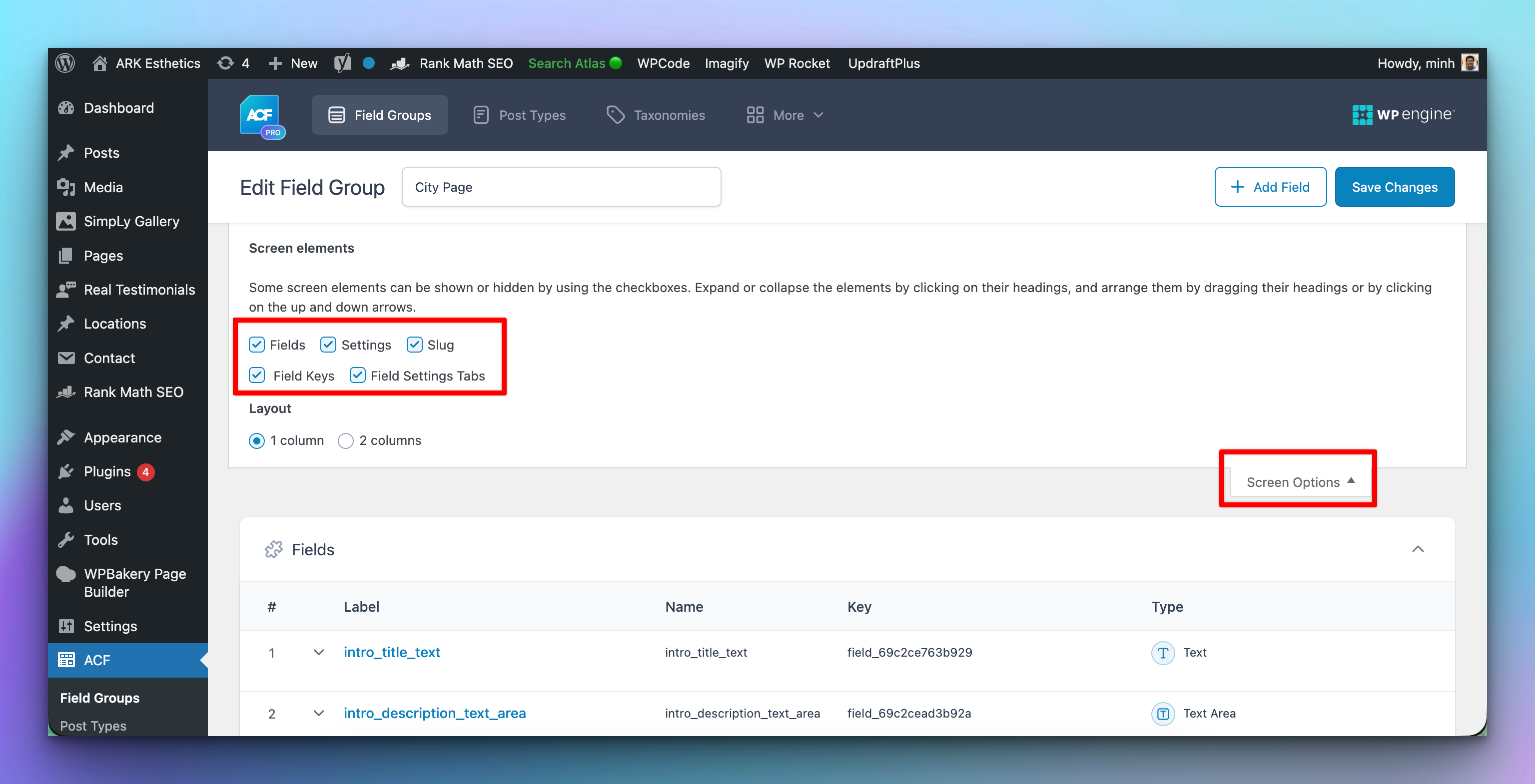
Fields Keys - Click Screen Options and enable Field Keys
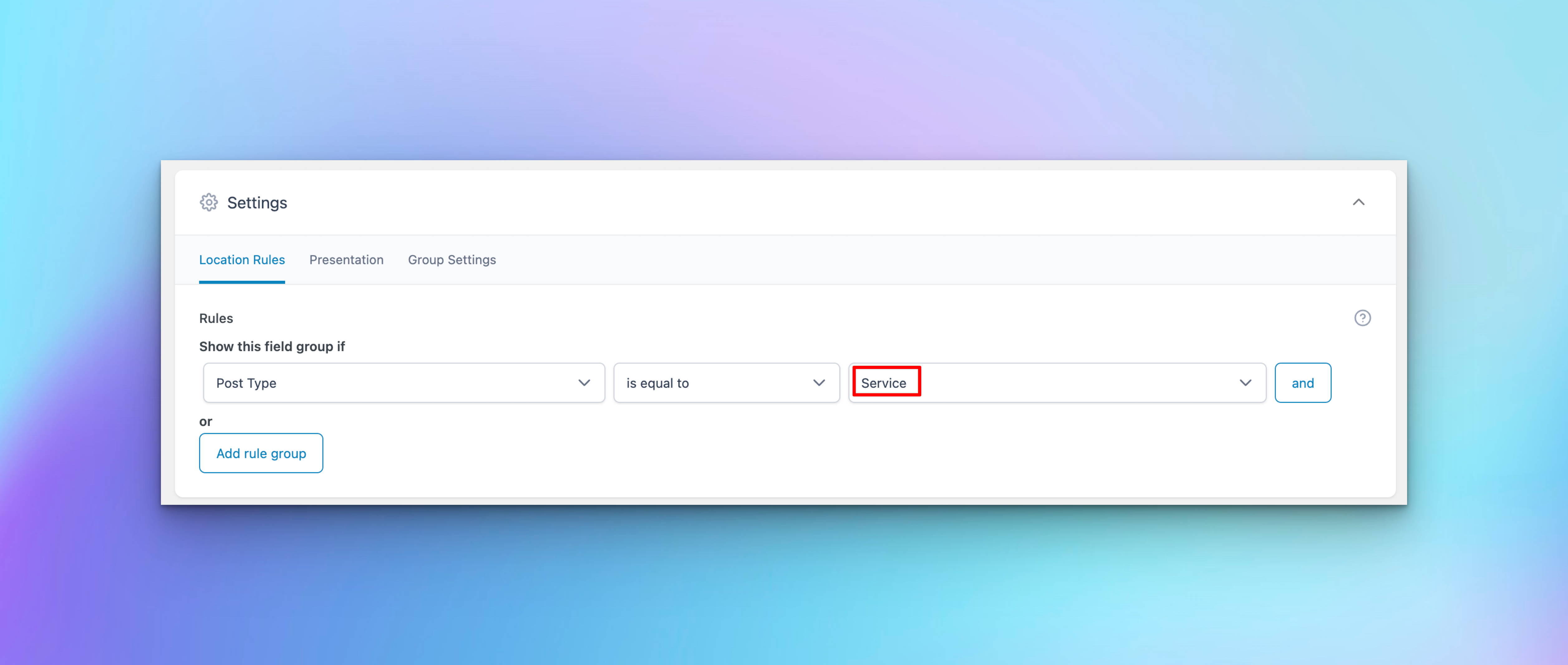
Location Rules - Set the post type to the one you just created (e.g. "Service").
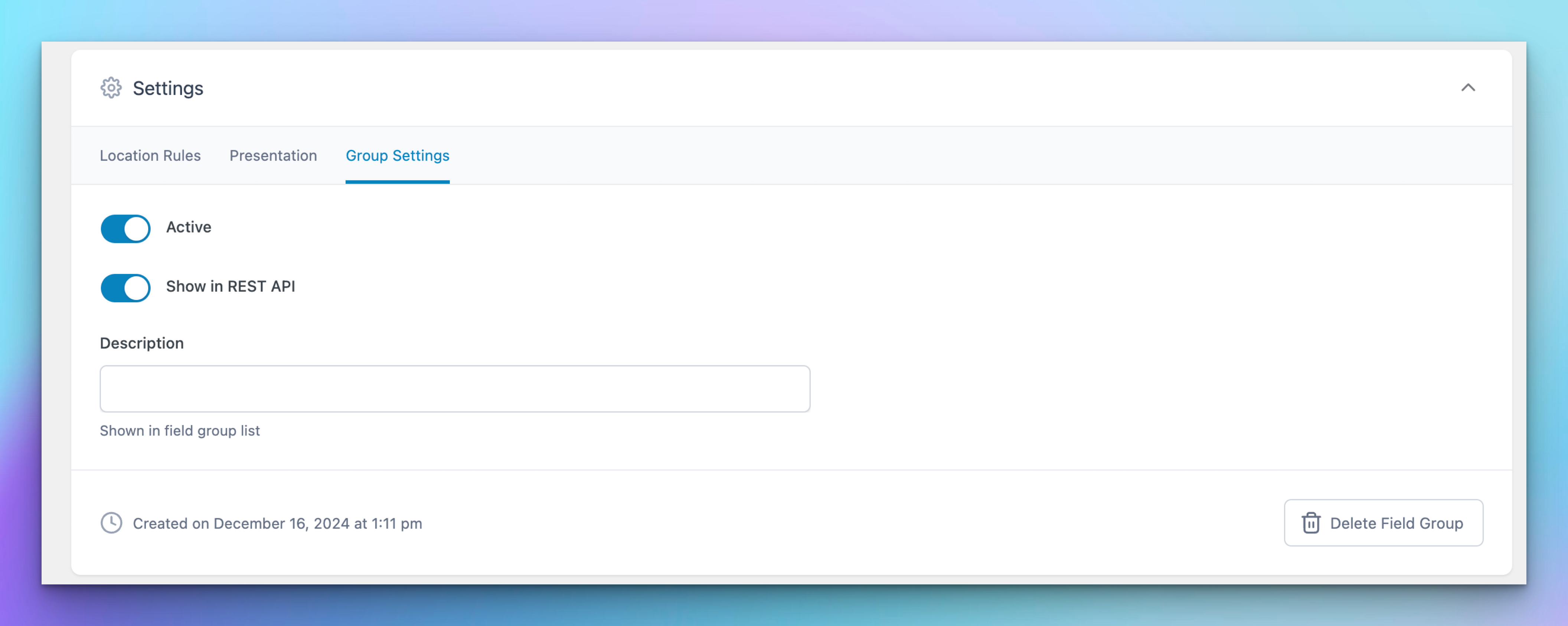
Show in REST API - Turn this on under Group Settings. SEOmatic needs this to detect your fields.
Step 4: Build Your Elementor Template
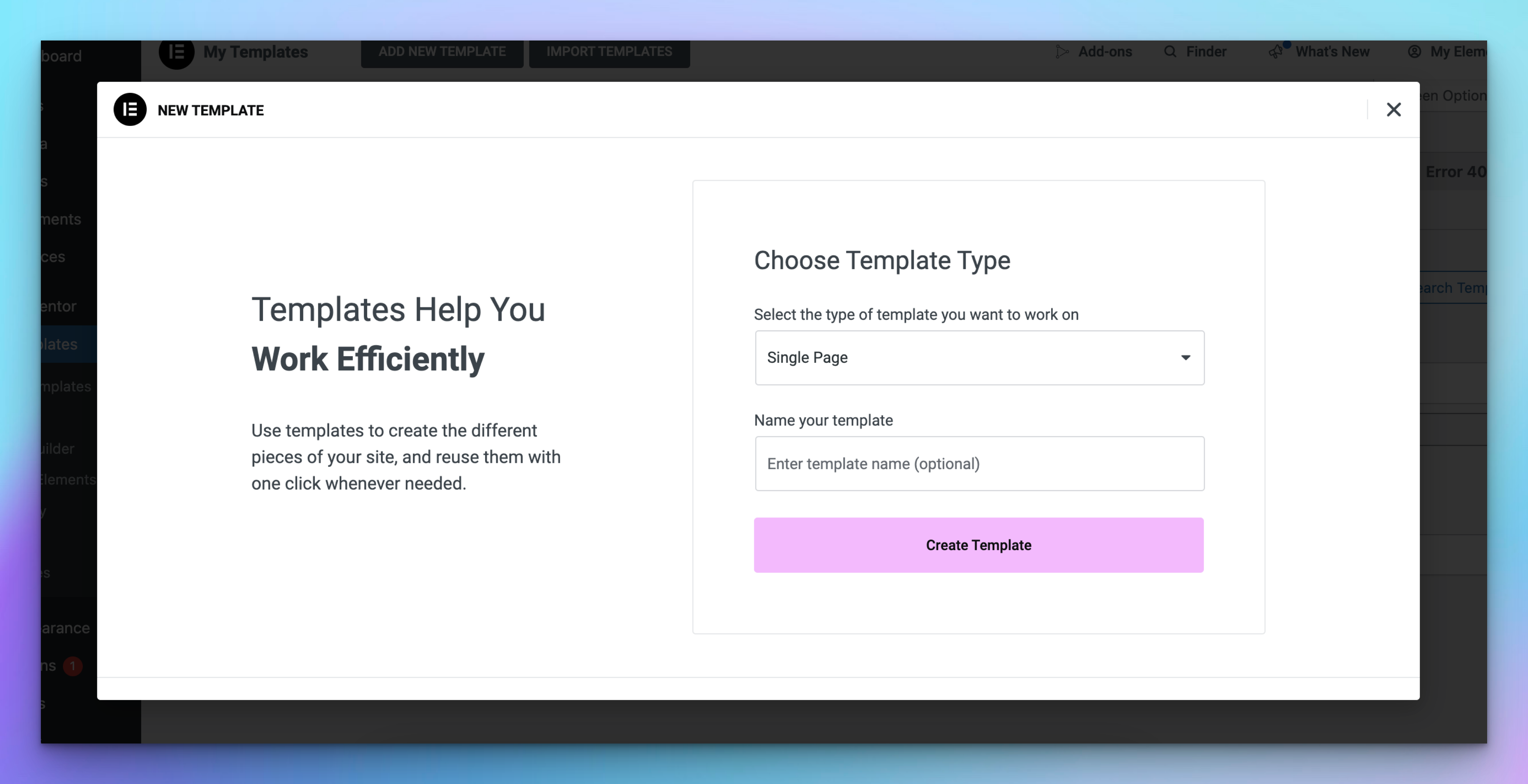
Go to Templates > Add New Template and select Single Page.
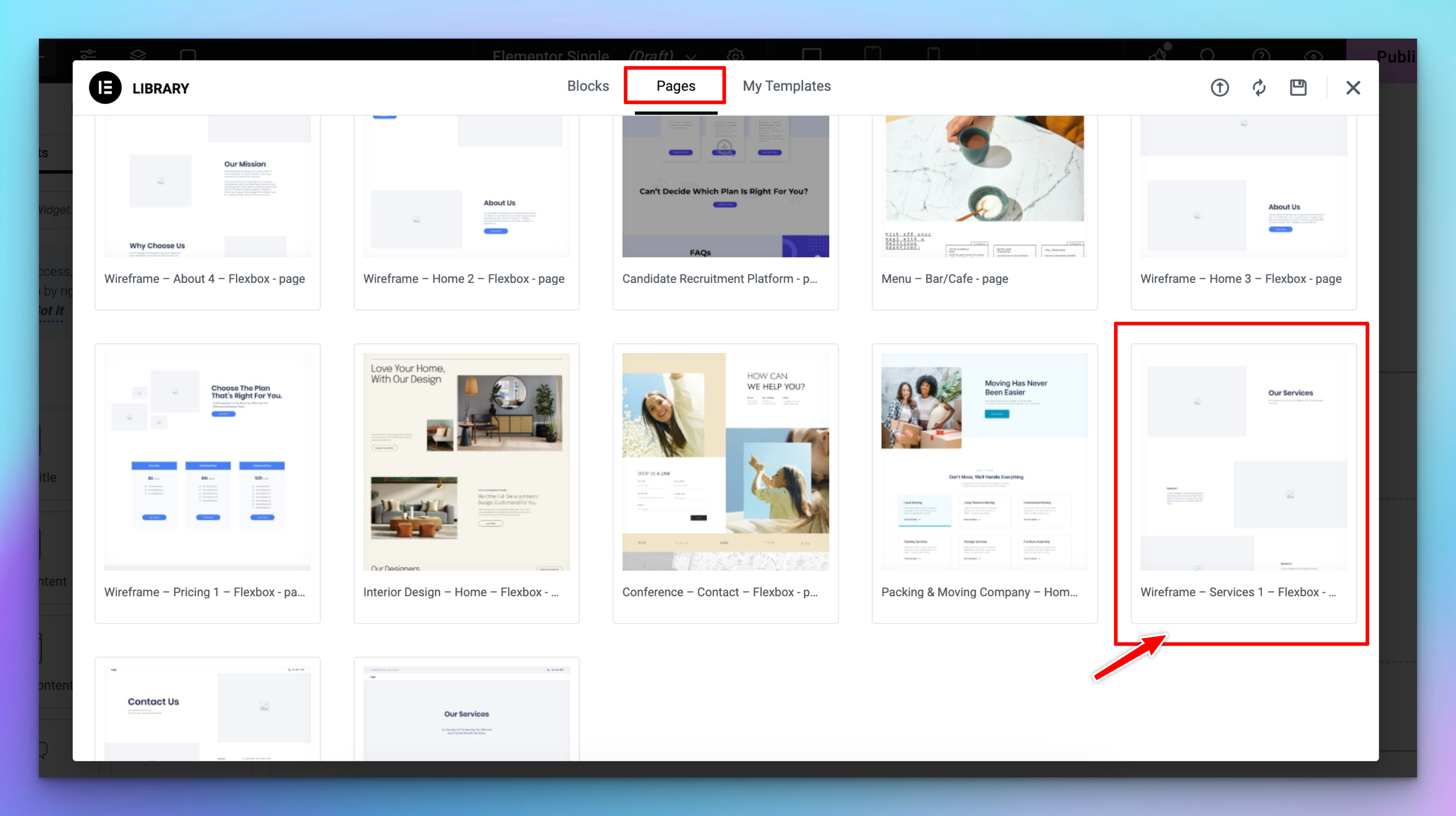
Before you start designing, go to Page Settings > Preview Settings and select a post from your custom type. This lets you see real ACF data while building the template instead of placeholder text.
Design your layout, then bind each widget to its ACF field:
Click on a widget (e.g. a Heading).
Click the Dynamic Tags icon (stacked discs).
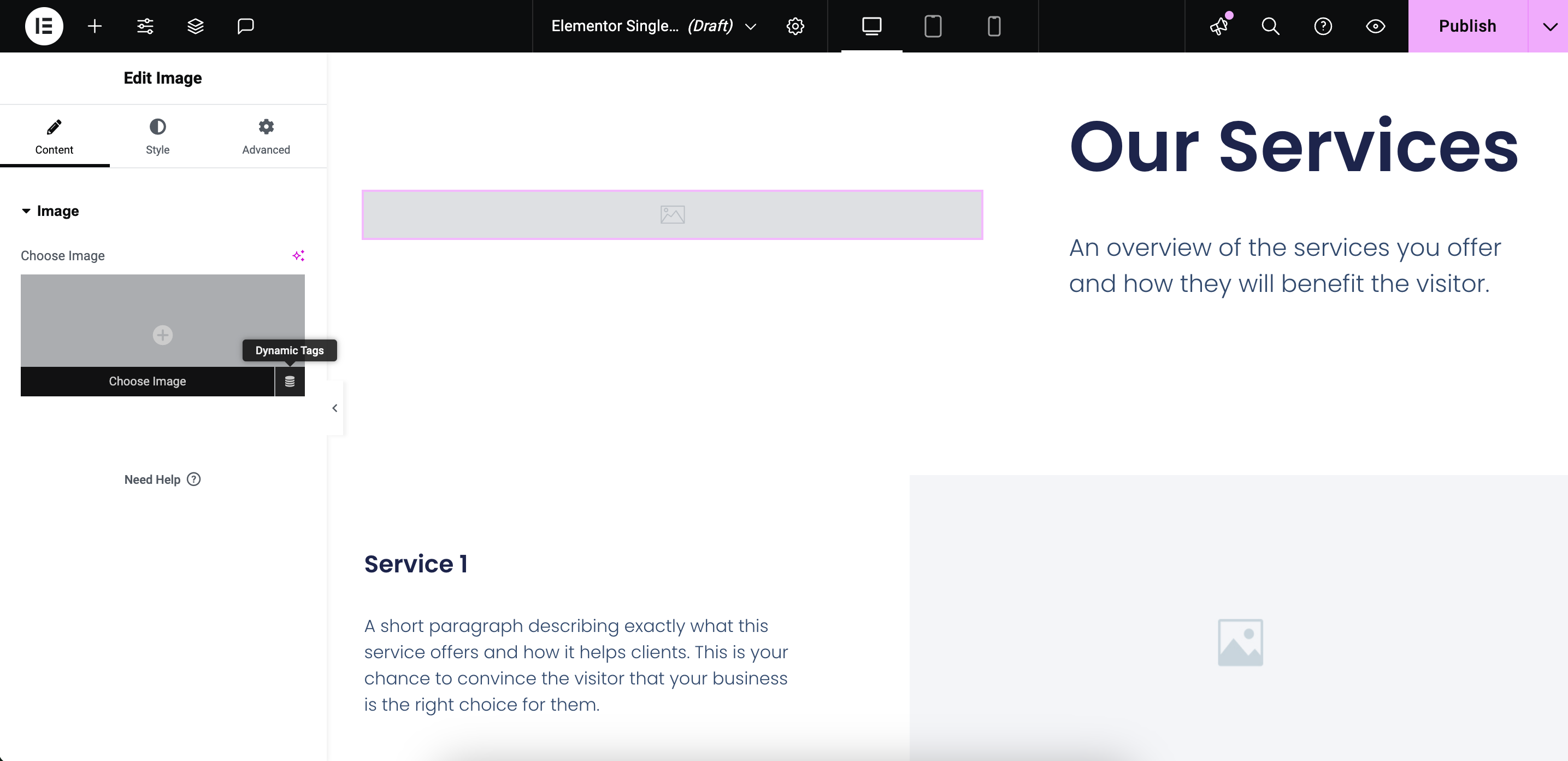
Select ACF Field and choose the matching field.
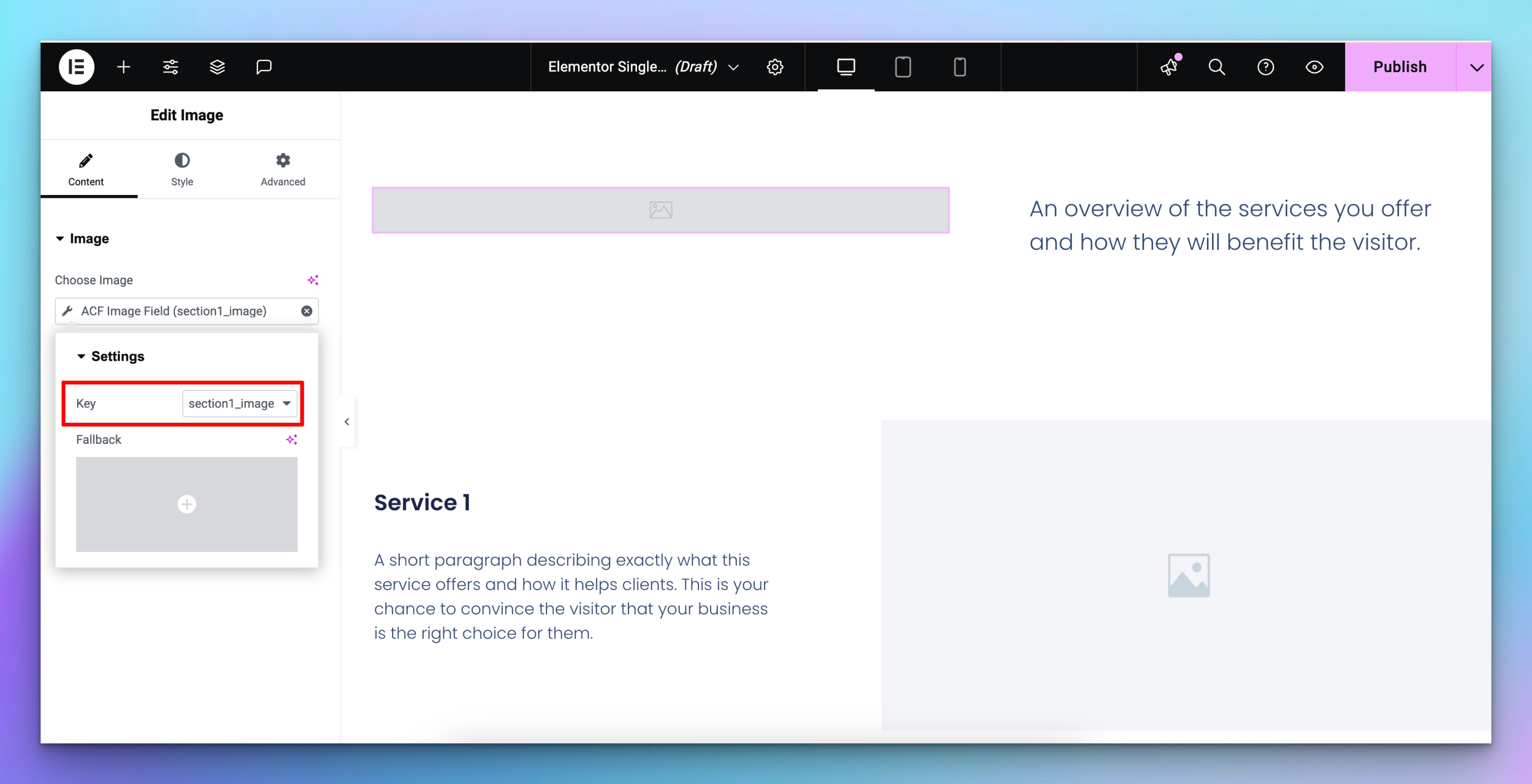
Optionally, set a fallback value - this is displayed if the ACF field is empty.
Repeat for all elements in your template.
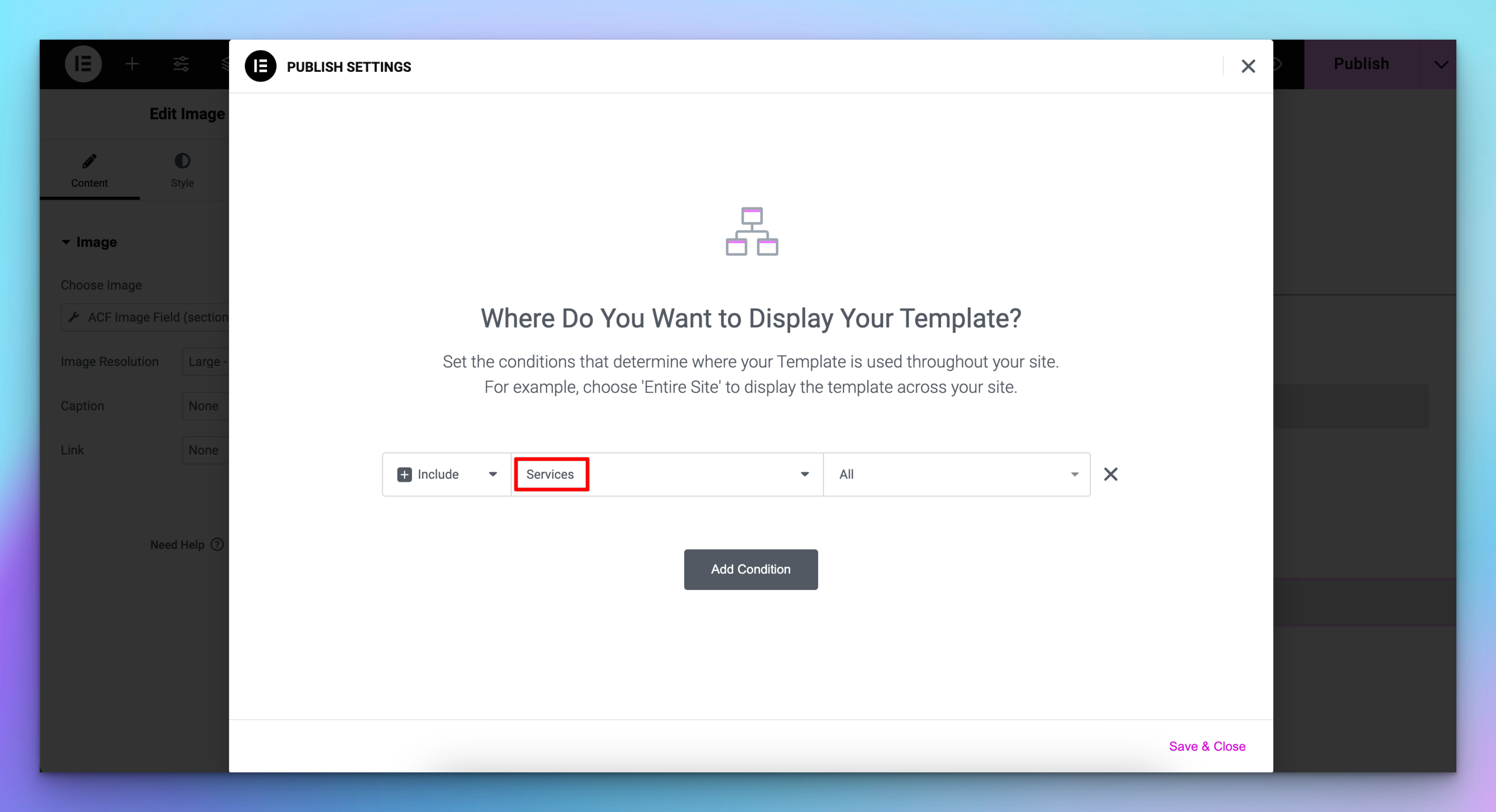
When you publish the template, set the display condition to your custom post type (e.g. "Service"). This tells WordPress to use this template for every page of that type.
Step 5: Set Up Your SEOmatic Project
Your WordPress site is now set up. Head over to SEOmatic, create a new project, and select the custom post type you just created (e.g. "Service"). Your ACF fields will be automatically synced.
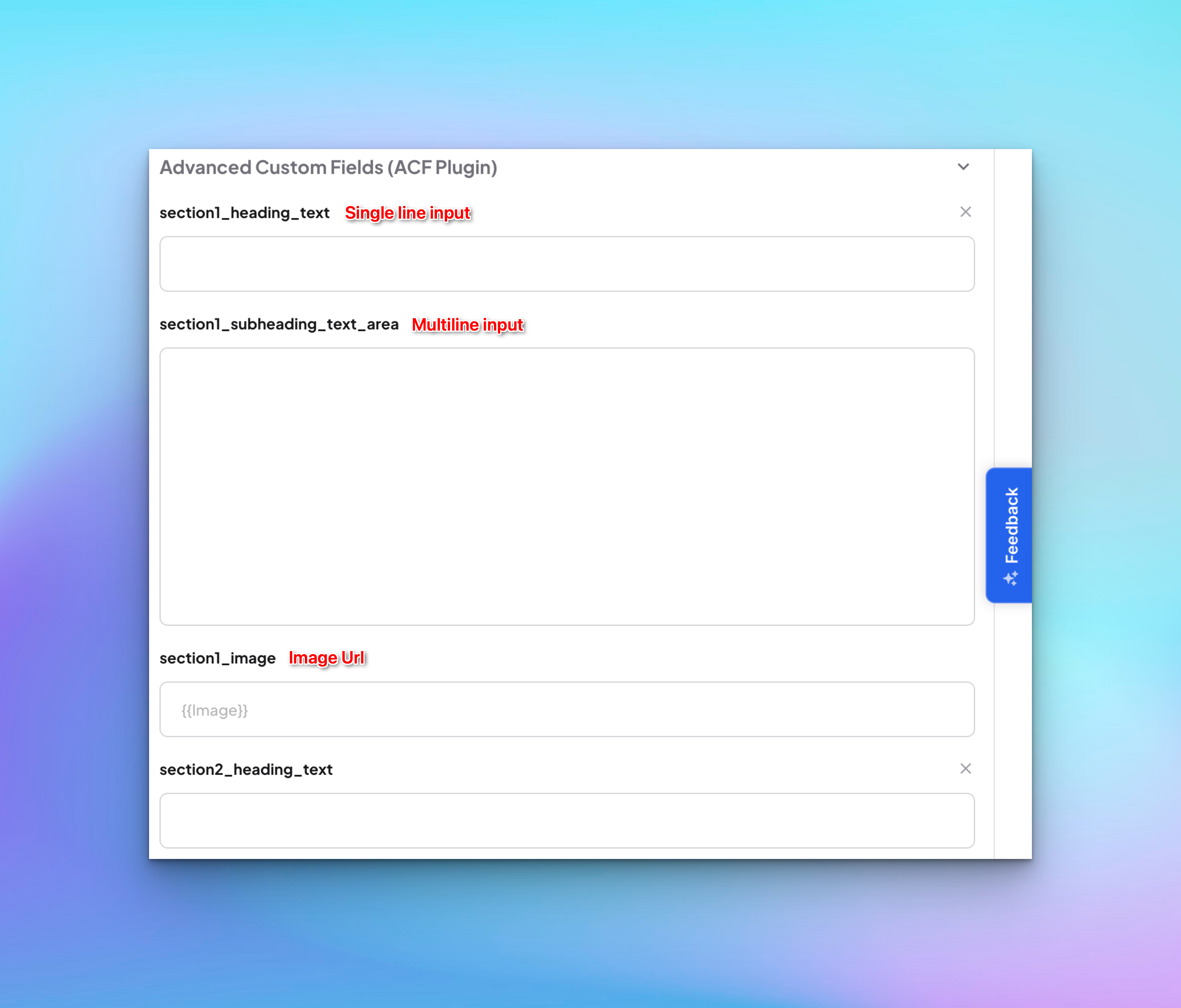
Notice how different input types are generated based on the suffixes used for the Text Fields.
Troubleshooting
Still need help? Share an idea