How to Connect Your WordPress Site to SEOmatic
Written By Minh
Last updated 6 months ago
Minimum Requirements
A self-hosted WordPress site (WordPress.org, not WordPress.com)
WordPress 5.6 or higher
An Administrator or Editor account
Your site running on HTTPS
If you use any security plugins (Wordfence, iThemes Security, Sucuri, etc.) or Cloudflare, make sure they aren't blocking the WordPress REST API. The REST API needs to be accessible at yoursite.com/wp-json/wp/v2/.
Step 1: Go to Connections
In your dashboard, go to Connections from the sidebar (or click the "Missing connection" warning in the header if you see one).
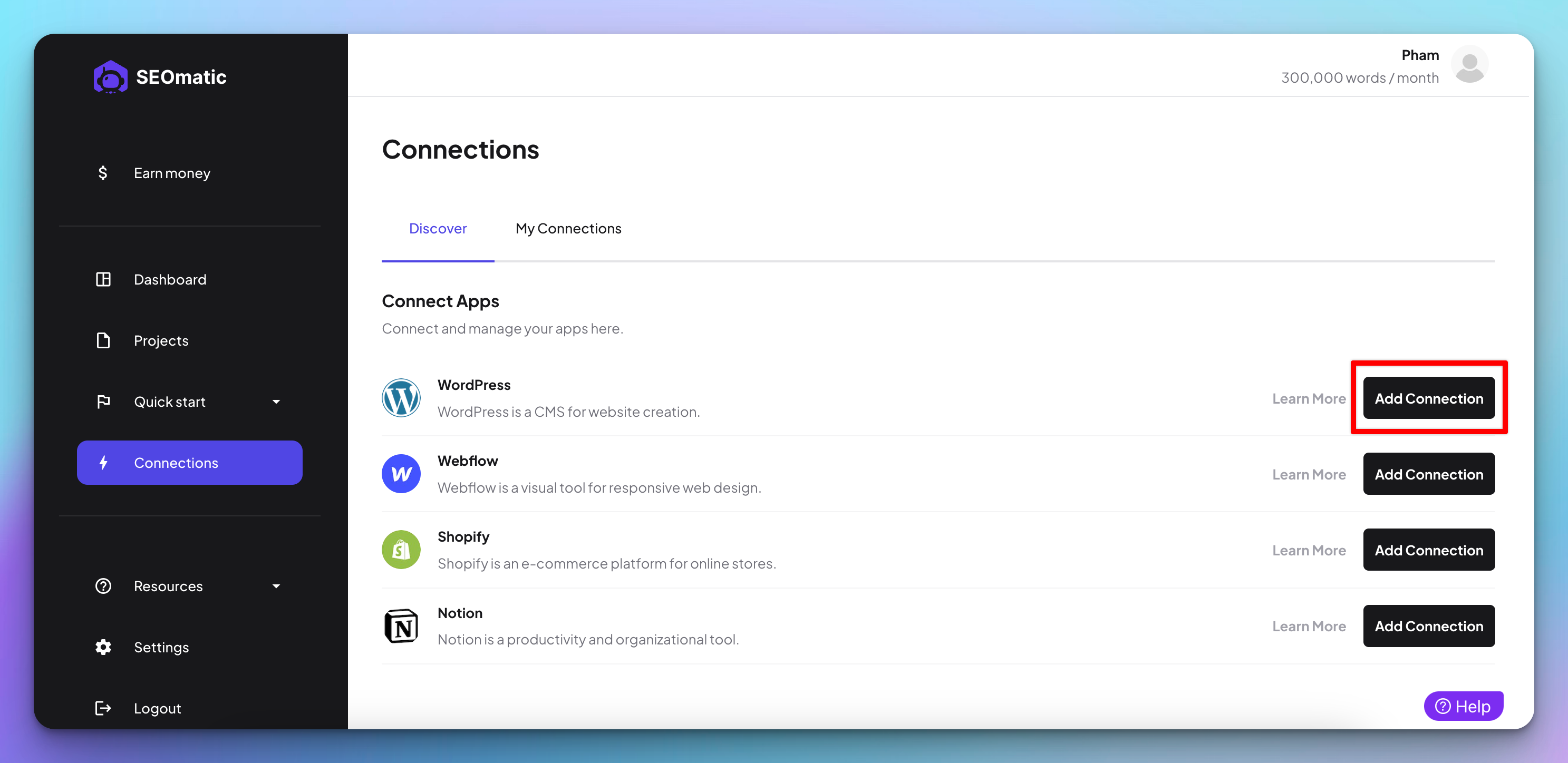
Step 2: Enter Your Website Address
Click Connect WordPress and type your domain name - just the domain, no https://:
Example: mywebsite.com
If your site is behind HTTP Basic Authentication (common on staging sites), expand the optional section and enter those credentials too.
Click Connect.
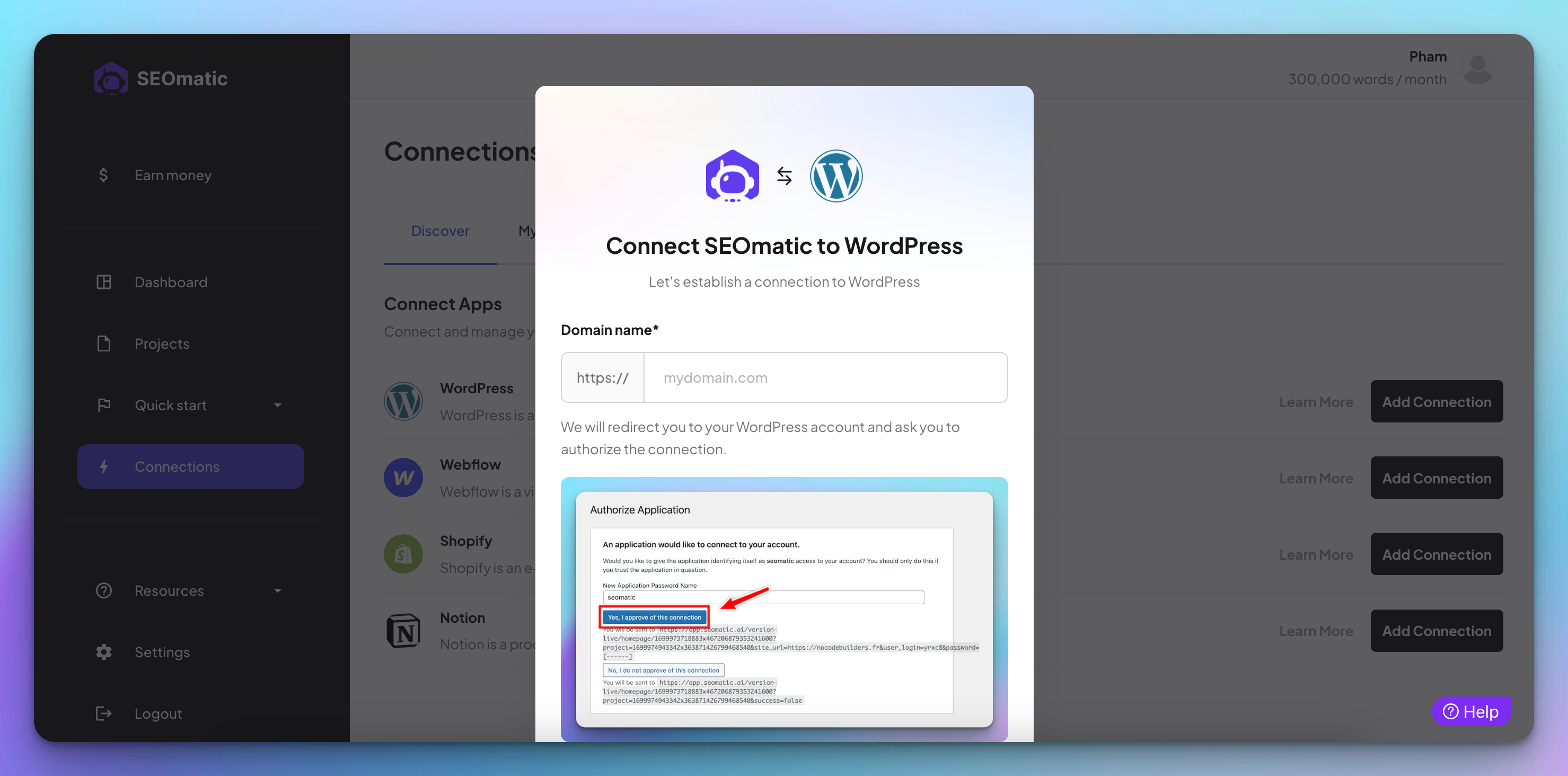
Step 3: Approve the Connection on WordPress
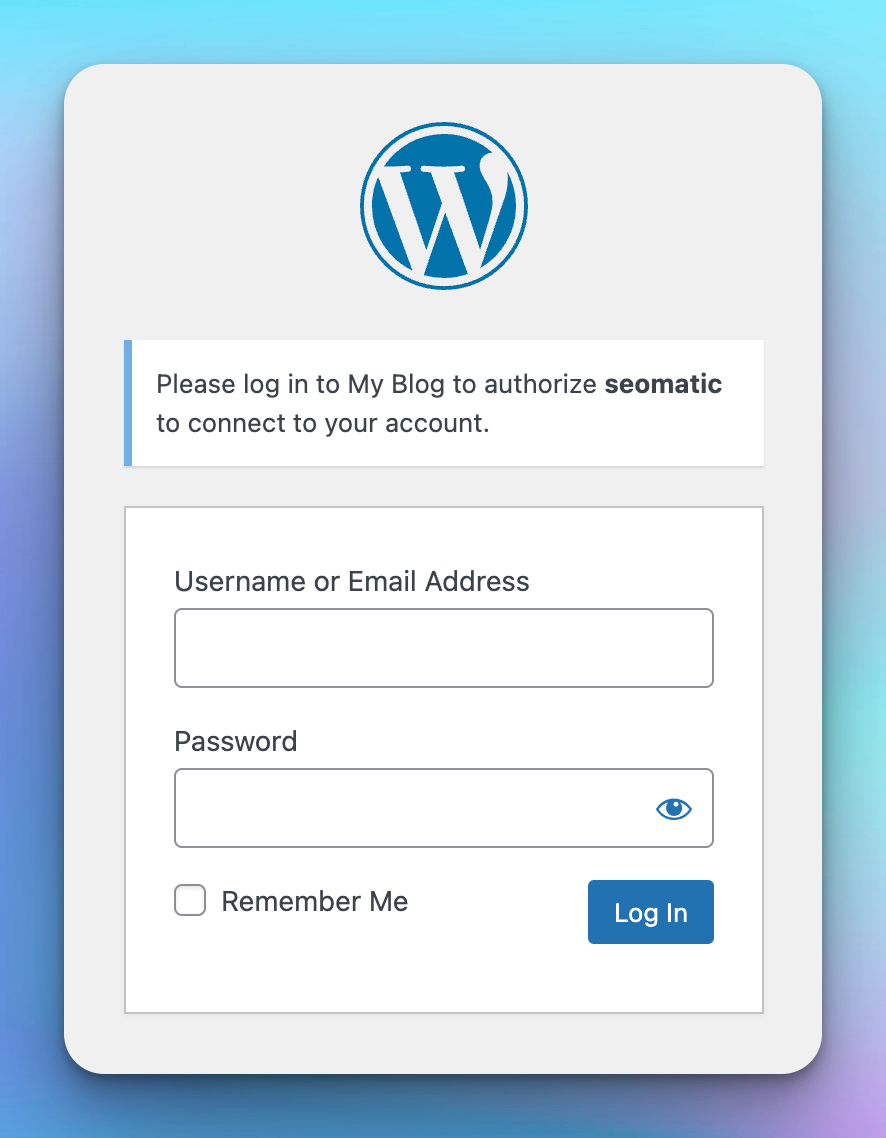
SEOmatic will redirect you to your WordPress login page. Log in with your WordPress admin account.
You'll see an "Authorize" screen. WordPress will automatically create a secure Application Password for SEOmatic - this is a separate password that only SEOmatic can use, and you can revoke it anytime.
Click "Yes, I approve this connection".
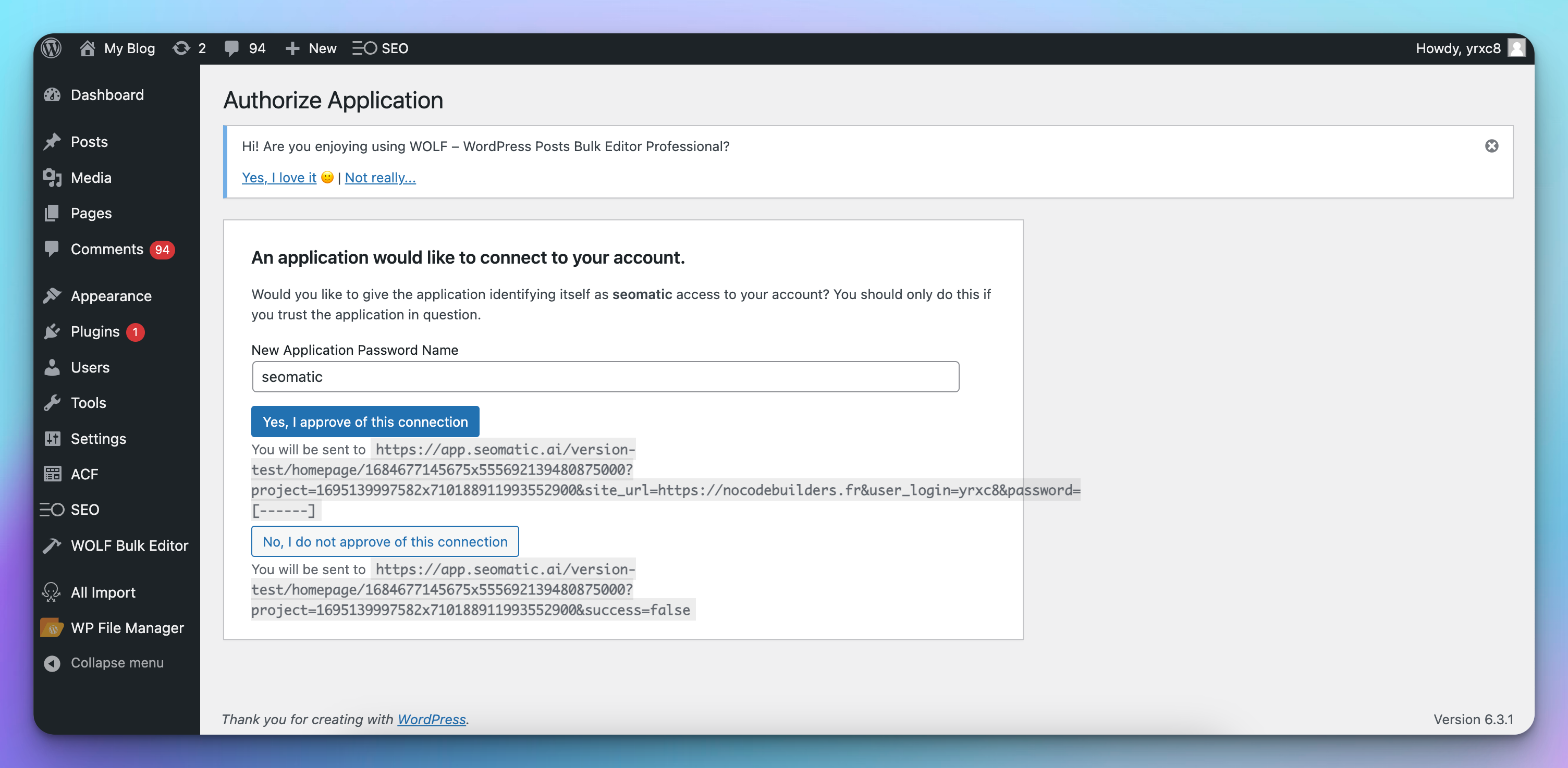
Step 4: You're Connected
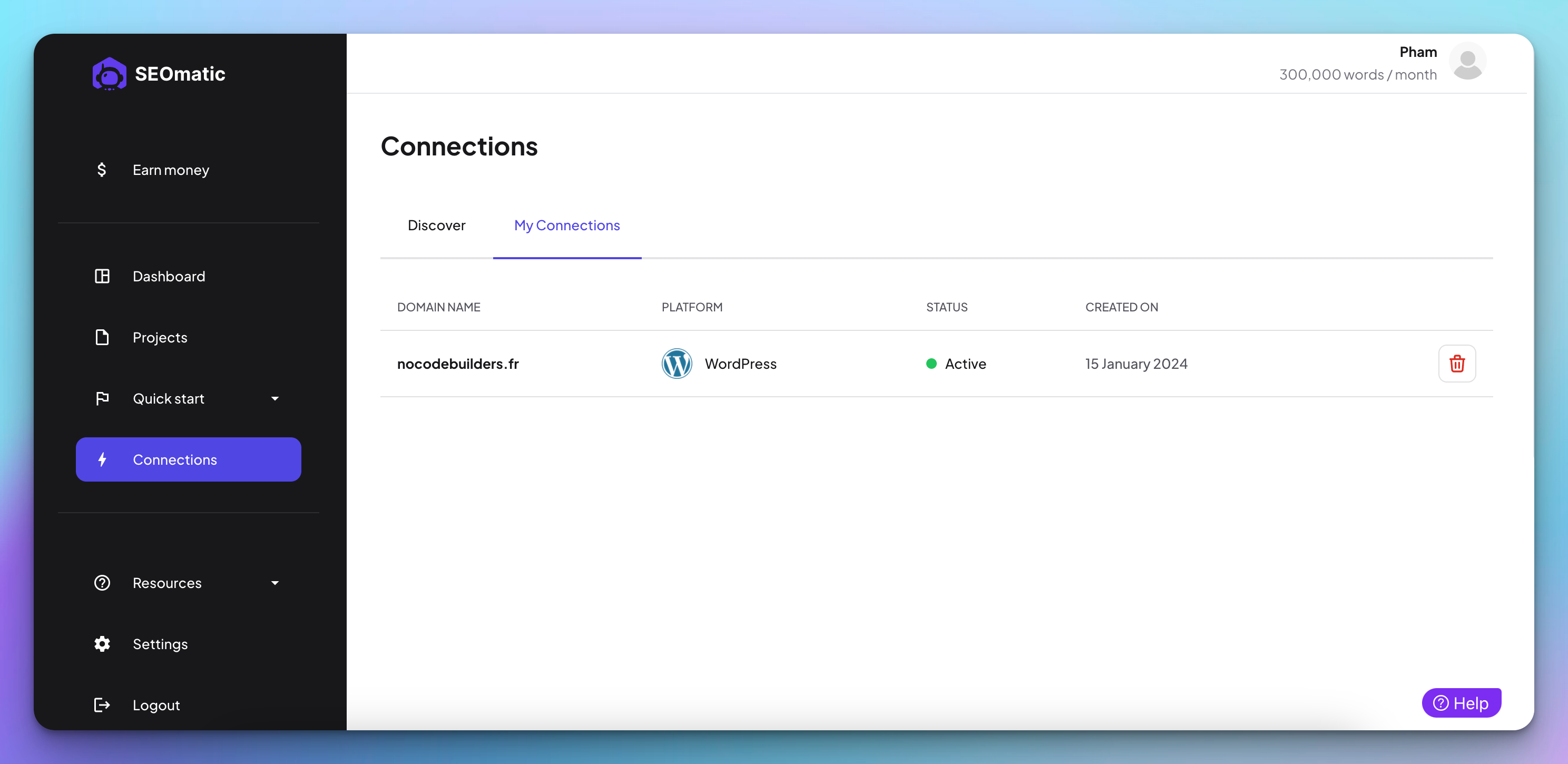
You'll be redirected back to SEOmatic. On the Connections page, you should now see your WordPress site listed with a green "active" status - that means you're connected and ready to publish.
Troubleshooting
Still need help? Share an idea