How to Connect Your Webflow Site to SEOmatic
Written By Minh
Last updated 6 months ago
Minimum Requirements
A Webflow site on a paid plan
Workspace admin access
An API token with the right permissions (see below)
Generating Your API Token
Before connecting, you need to create an API token in Webflow.
Log in to your Webflow account and go to Workspace Settings.
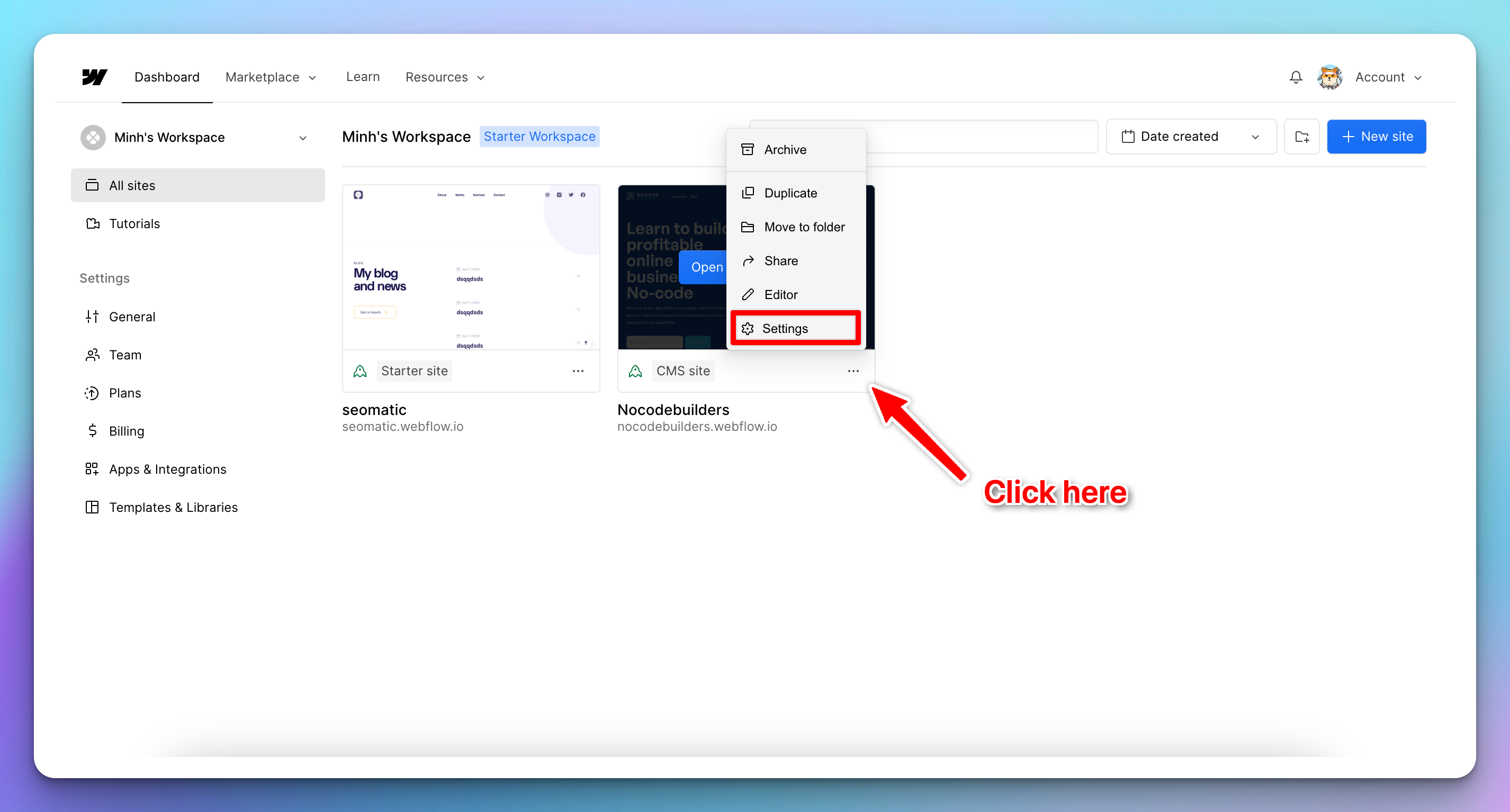
Select your website and click on the three dots icon then “Settings”.
Navigate to Apps & Integrations and find the “API access” section.
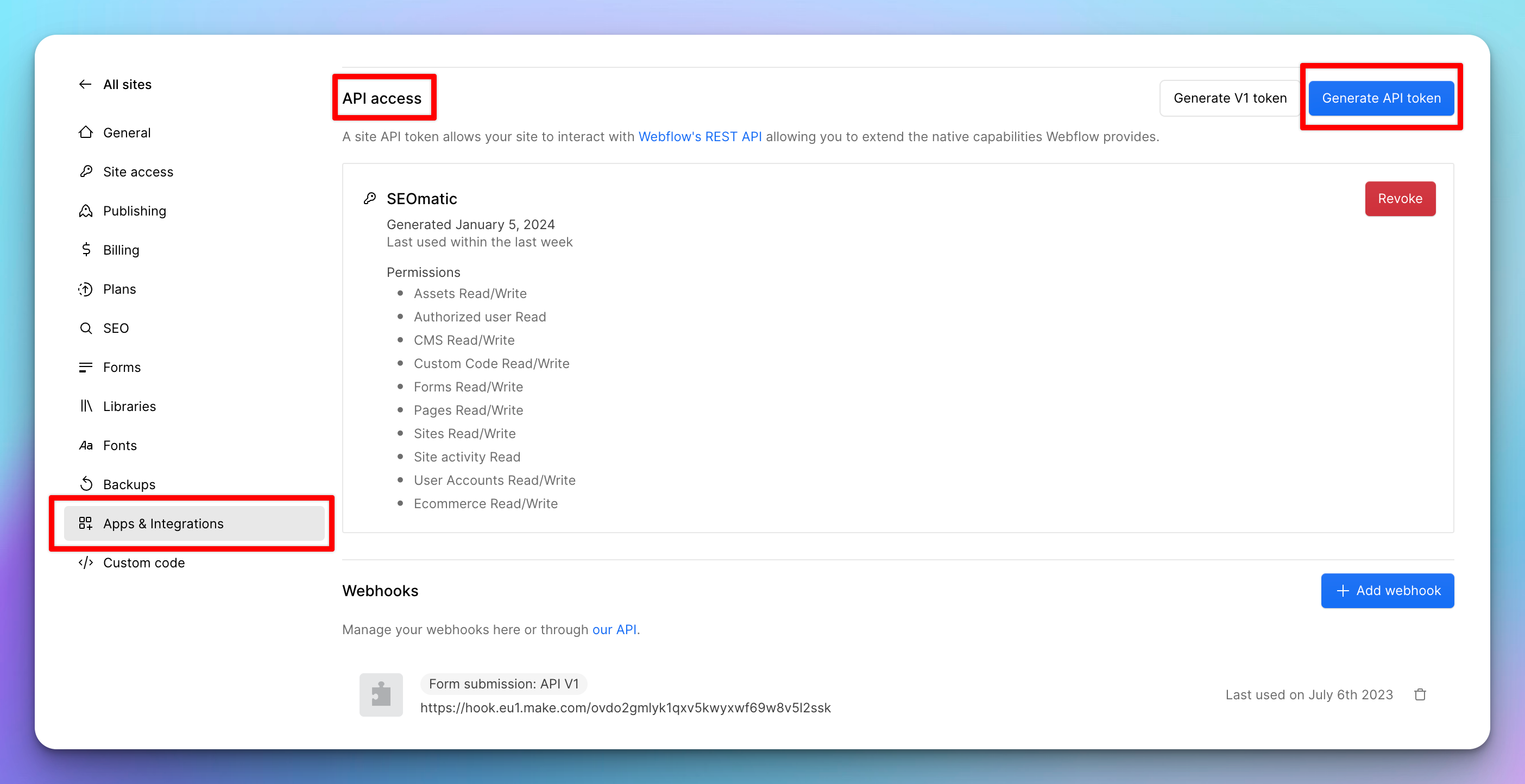
Click "Generate API token".
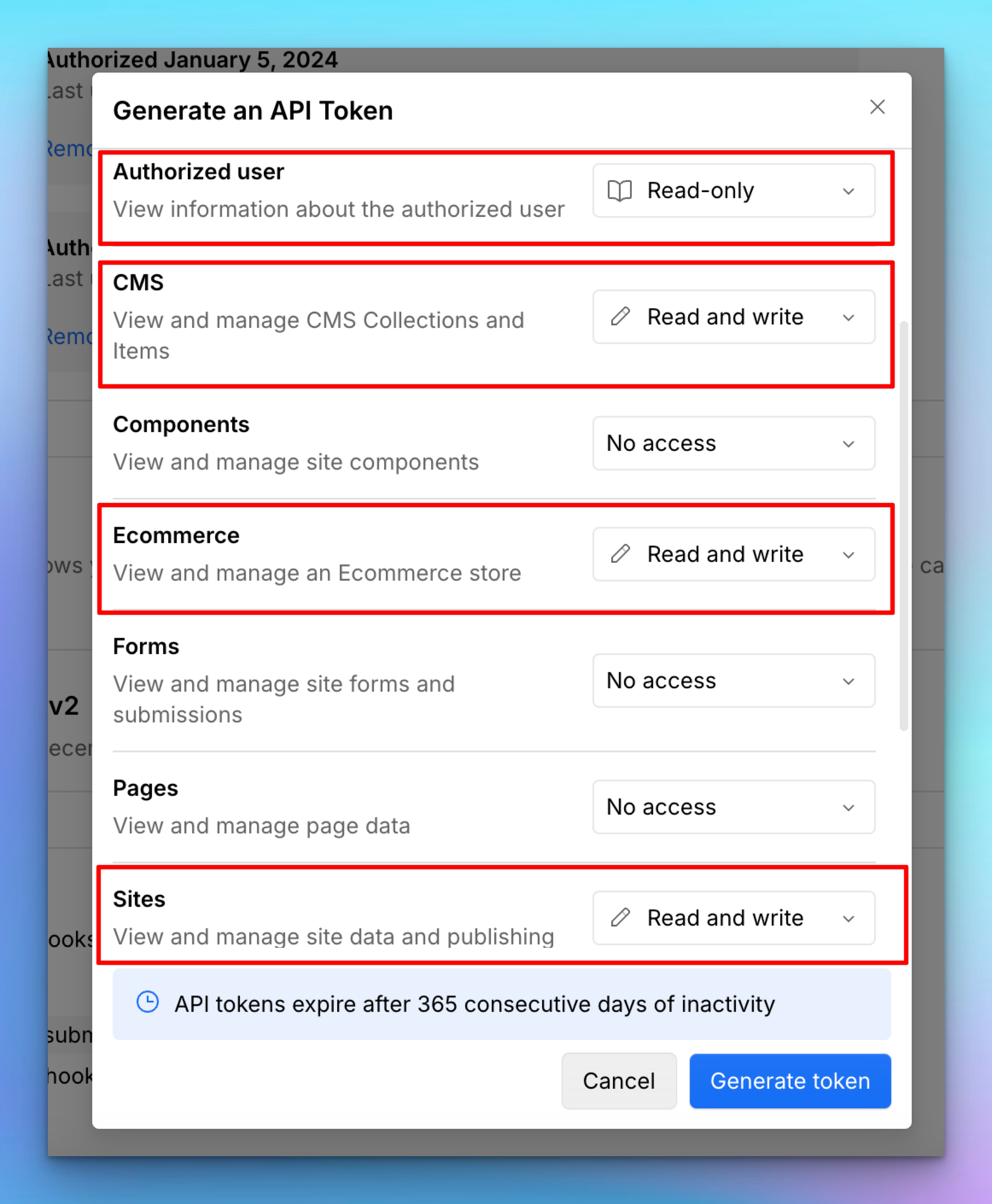
Set the following permissions:
Authorized user (Read-only)
CMS (Read and write)
Ecommerce (Read and write)
Site (Read and write)
Name the token (e.g. "SEOmatic") and click "Create token".
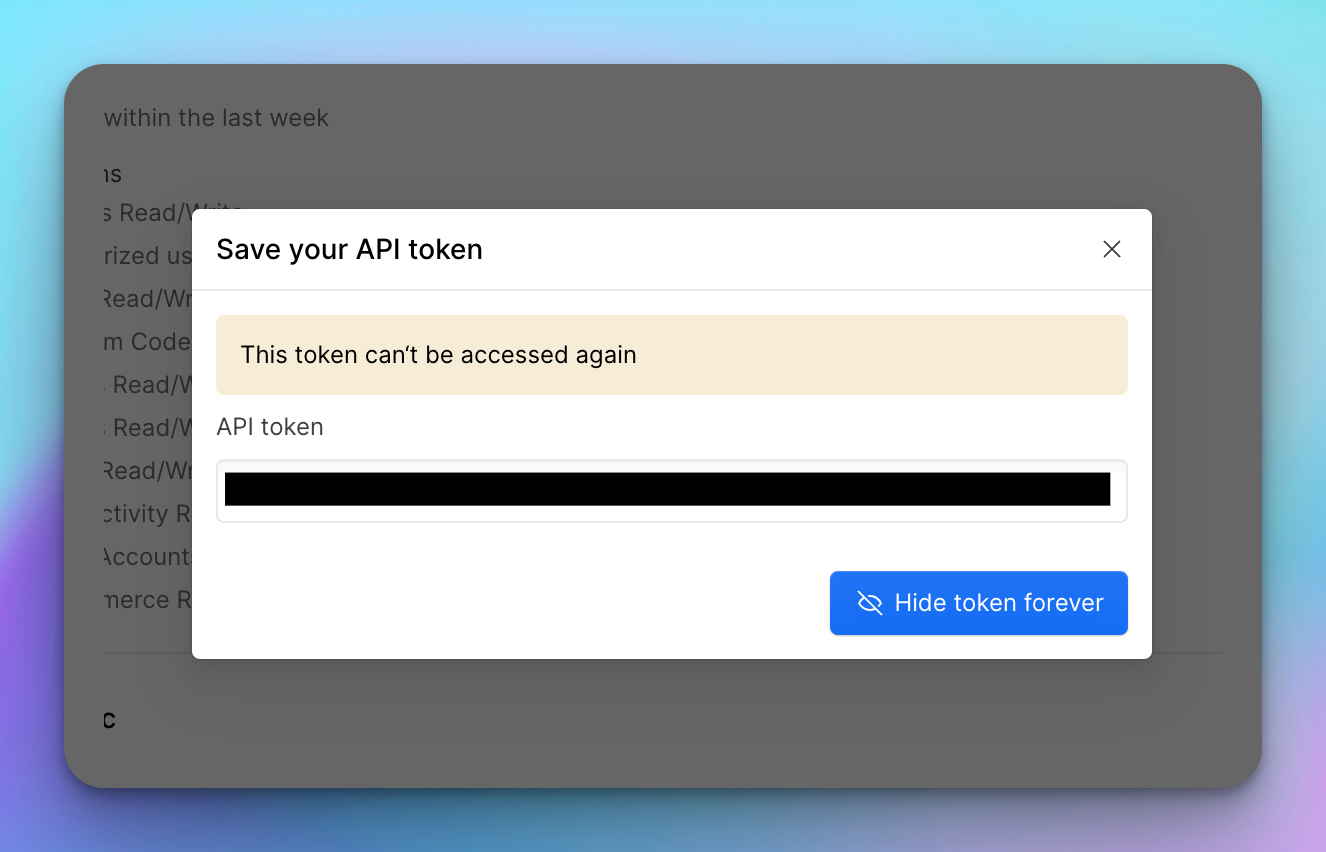
Copy the token and save it somewhere secure. You will not be able to see it again.
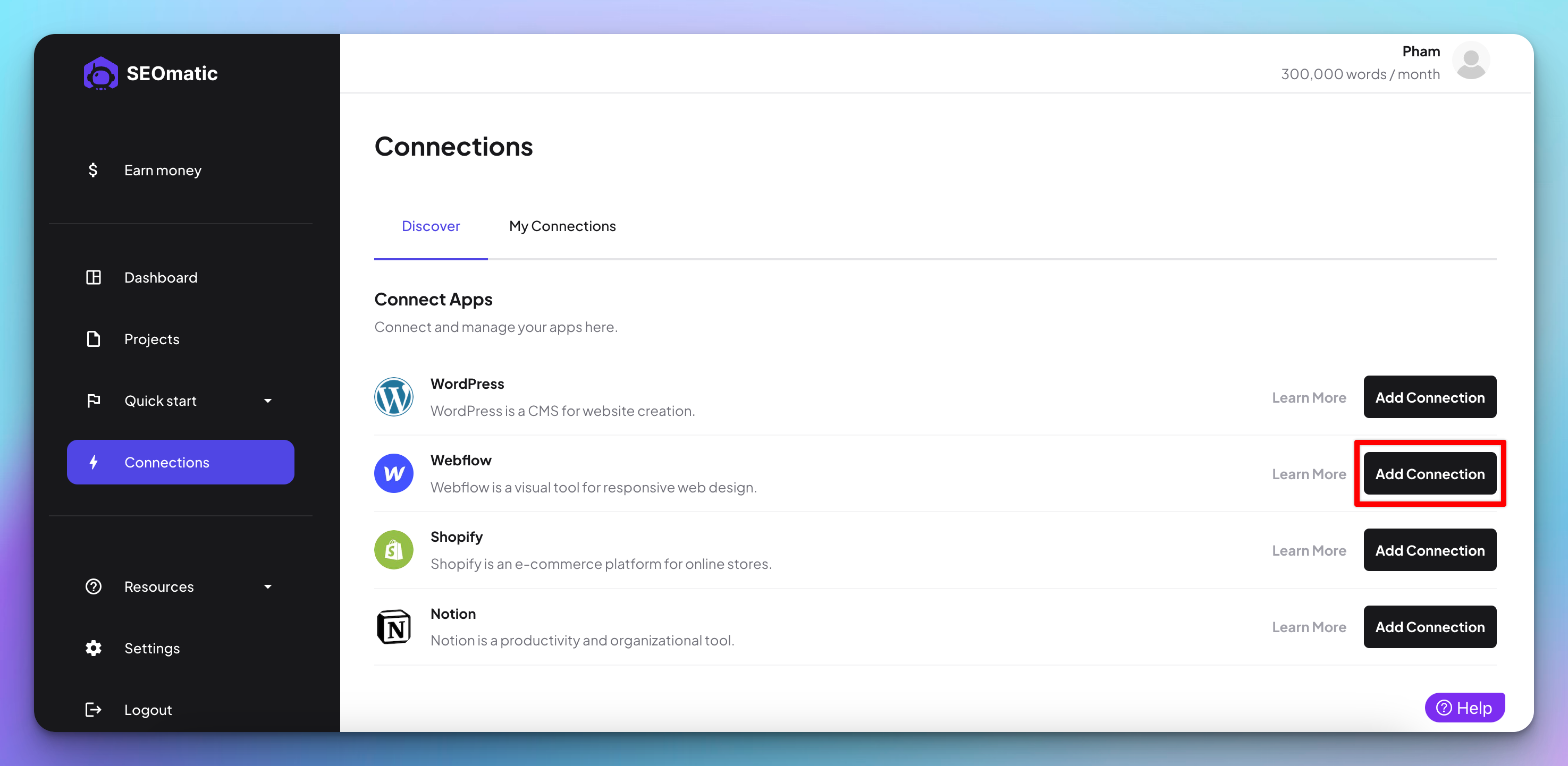
Step 1: Go to Connections
In your SEOmatic dashboard, go to Connections from the sidebar (or click the "Missing connection" warning in the header if you see one).
Step 2: Enter Your API Token
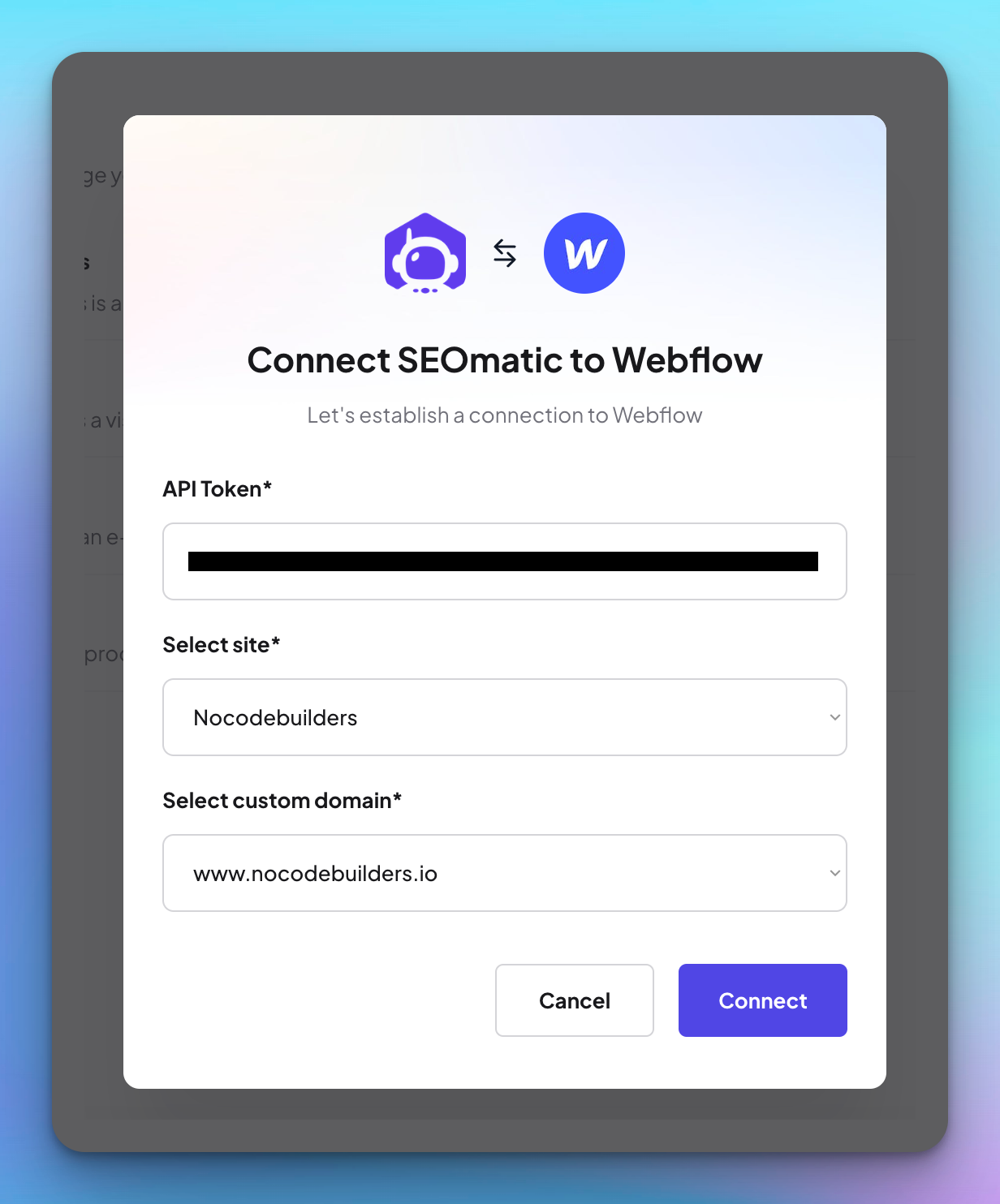
Click Connect Webflow and paste your API token. SEOmatic will automatically validate it and load your available sites.
Select your site from the dropdown, then choose your domain (your custom domain or the default .webflow.io address).
Click Connect.
Step 3: You're Connected
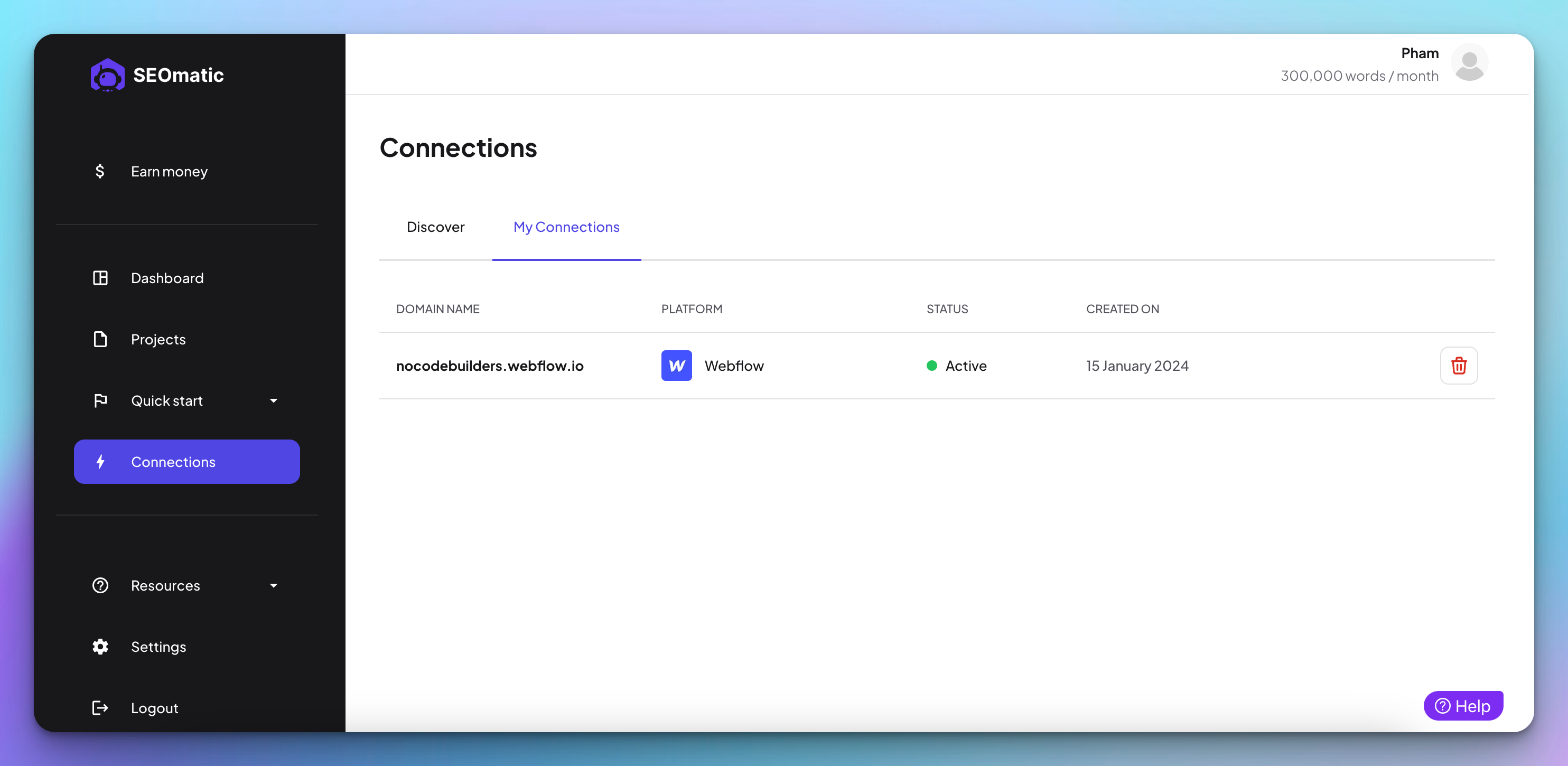
On the Connections page, you should now see your Webflow site listed with a green "active" status - that means you're connected and ready to publish.
Troubleshooting
Still need help? Share an idea