How to Connect Your Framer Site to SEOmatic
Written By Minh
Last updated 6 months ago
Minimum Requirements
A Framer account with Editor or Owner access to the project
A Framer site with at least one CMS Collection
Setting Up Your Framer API Key
Before connecting, you need to generate an API key from your Framer project settings.
Open your Framer project in the editor.
Click the Site Settings icon (gear icon, top-left).
Go to the General section.
Scroll down to the API Key section.
Click Generate to create a new API key.
Copy the generated API key — keep it secure, it is only shown once and cannot be retrieved later.
You will also need your Project URL — copy it from your browser's address bar while in the Framer editor. It looks like: https://framer.com/projects/Website--aabbccdd1122
The Framer Server API is currently in open beta and is free on all Framer plans.
Step 1: Go to Connections
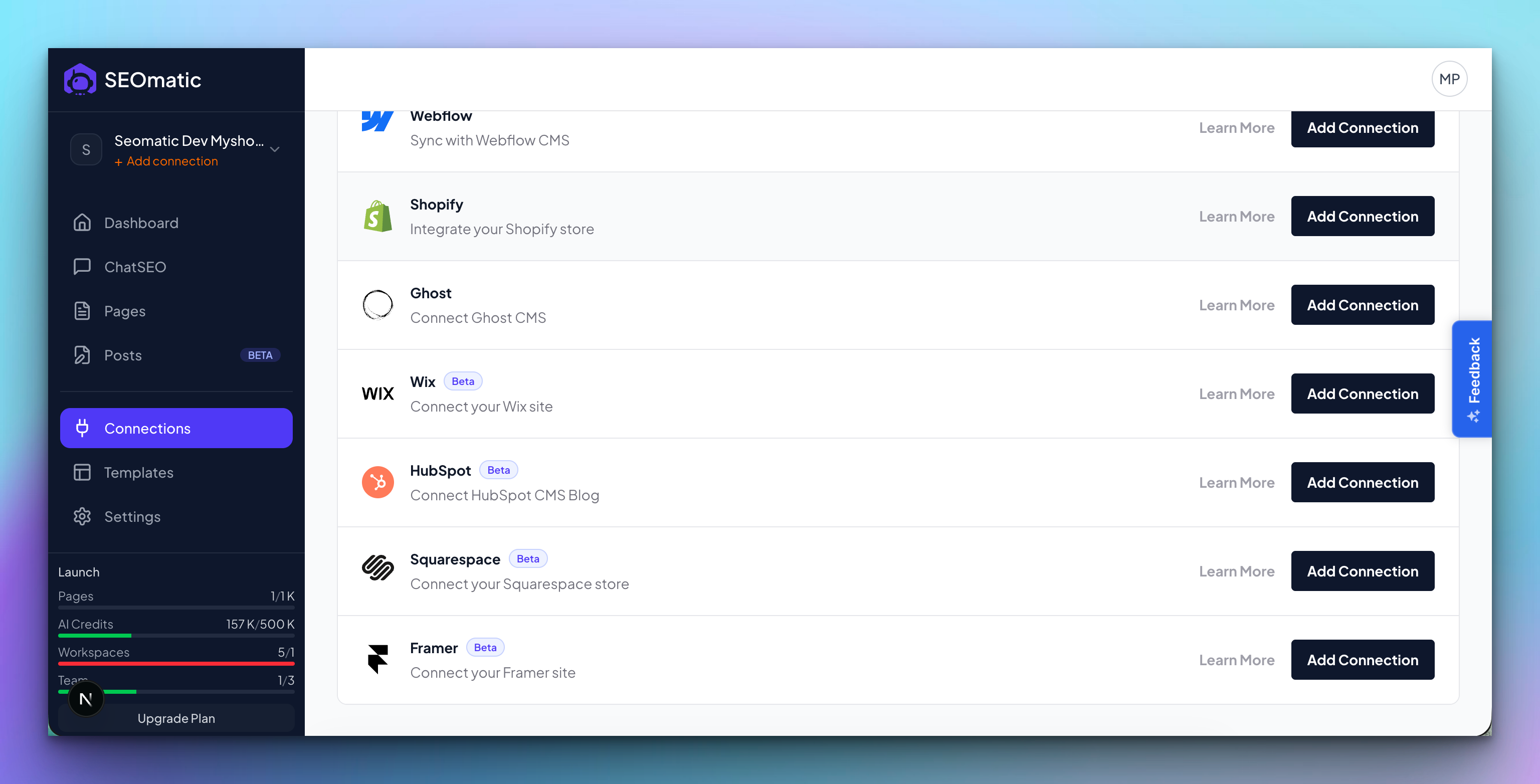
In your SEOmatic dashboard, go to Connections from the sidebar (or click the "Missing connection" warning in the header if you see one).
Step 2: Enter Your Credentials
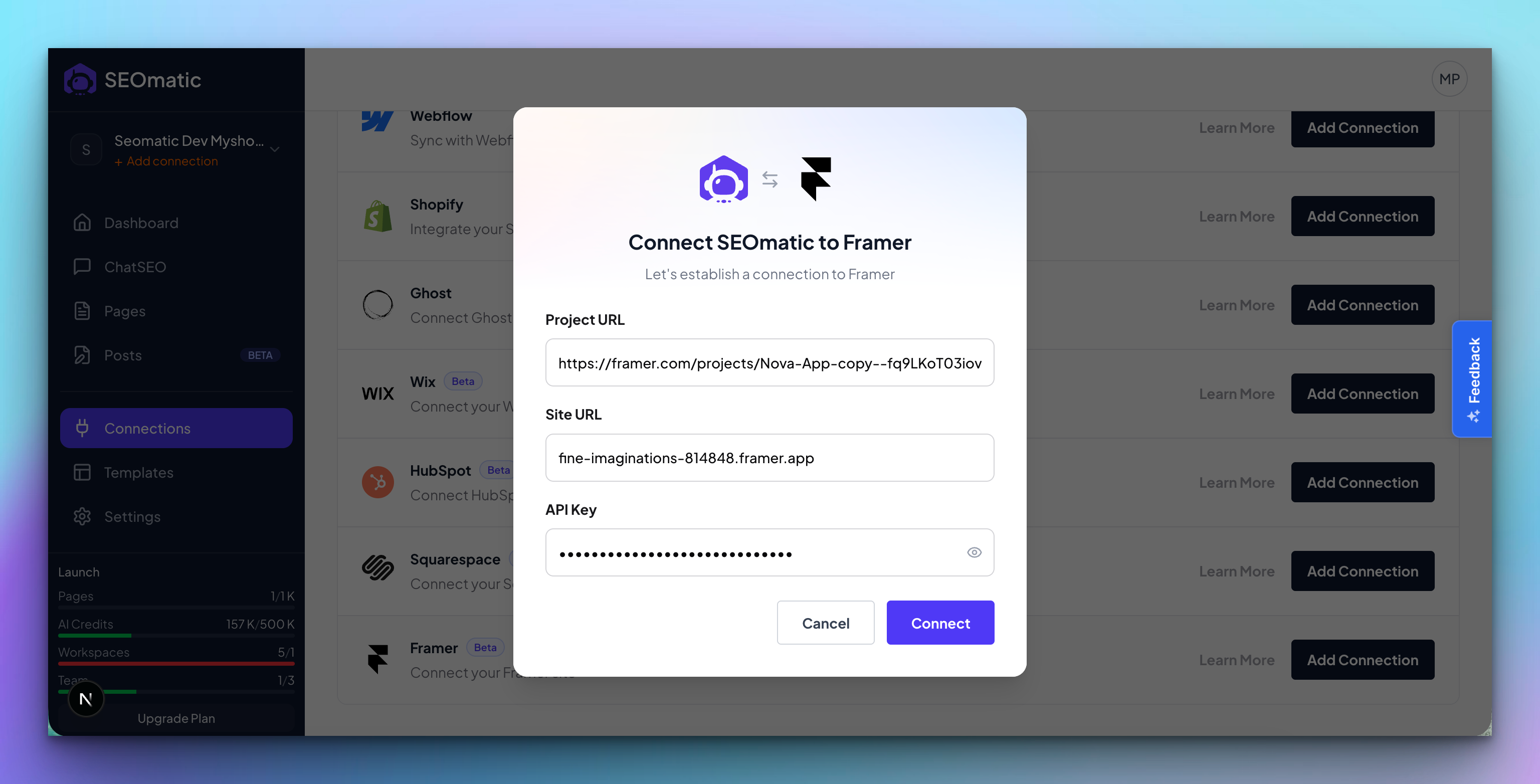
Click Connect Framer and fill in:
Project URL - your Framer editor URL (e.g., https://framer.com/projects/Website--aabbccdd1122)
Site URL - your published site domain (e.g., mysite.com or mysite.framer.website)
API Key - the key you generated in Project Settings
SEOmatic will automatically validate your credentials as you type. If the API key and Project URL are valid, you'll see your project name appear.
Click Connect.
Step 3: You're Connected
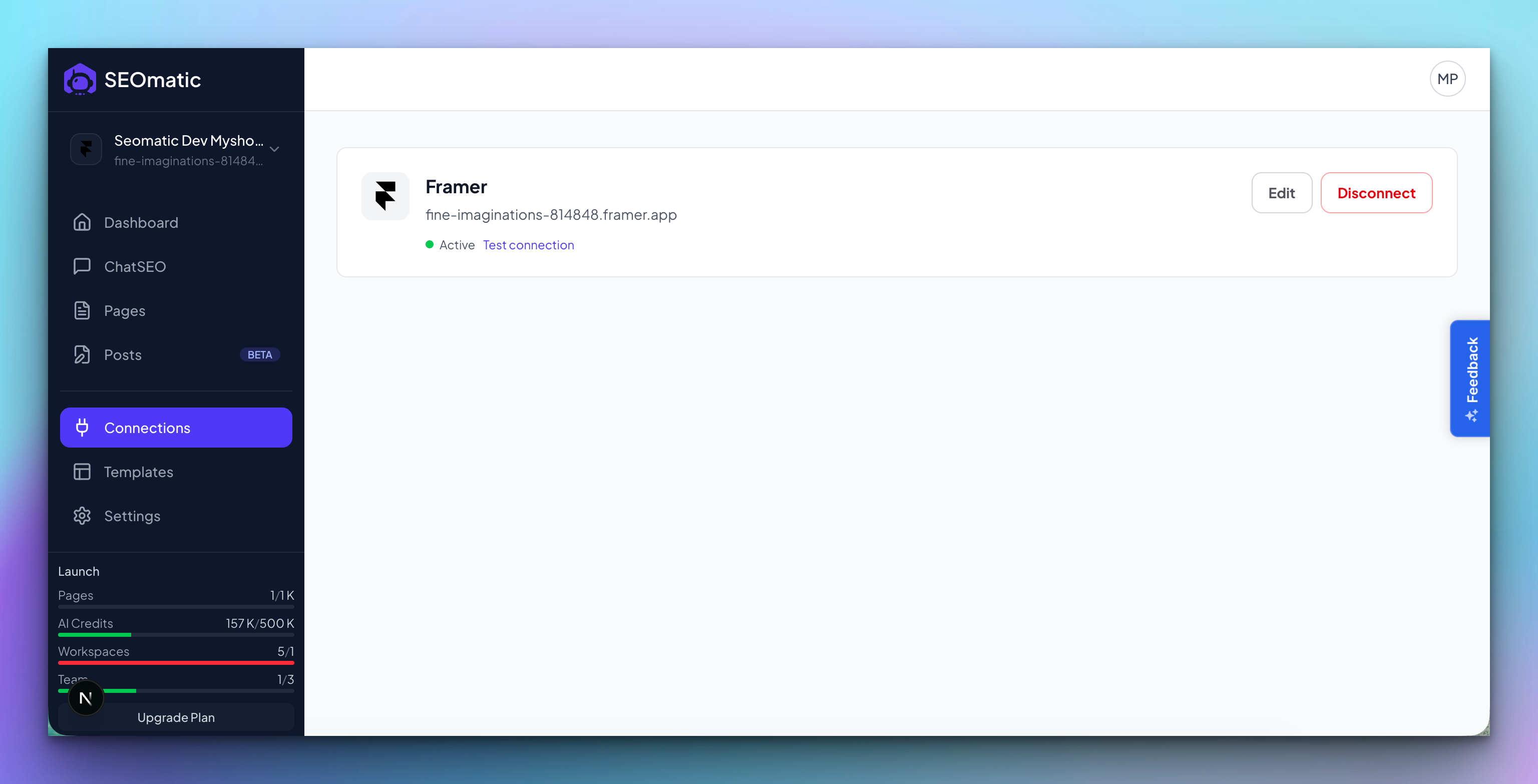
On the Connections page, you should now see your Framer site listed with a green "active" status - that means you're connected and ready to publish.
Troubleshooting
Still need help? Share an idea