How to Connect Your Shopify Store to SEOmatic
Written By Minh
Last updated 6 months ago
Minimum Requirements
A Shopify store on a paid plan
Store owner or staff admin access
A custom app created in your Shopify admin
Step 1: Create a Custom App on Shopify
Before connecting to SEOmatic, you need to create an app on your Shopify store that will allow SEOmatic to publish content.
Log in to your Shopify admin at https://www.shopify.com/admin.
Go to Apps > App settings > Develop apps > Build apps in Dev Dashboard.
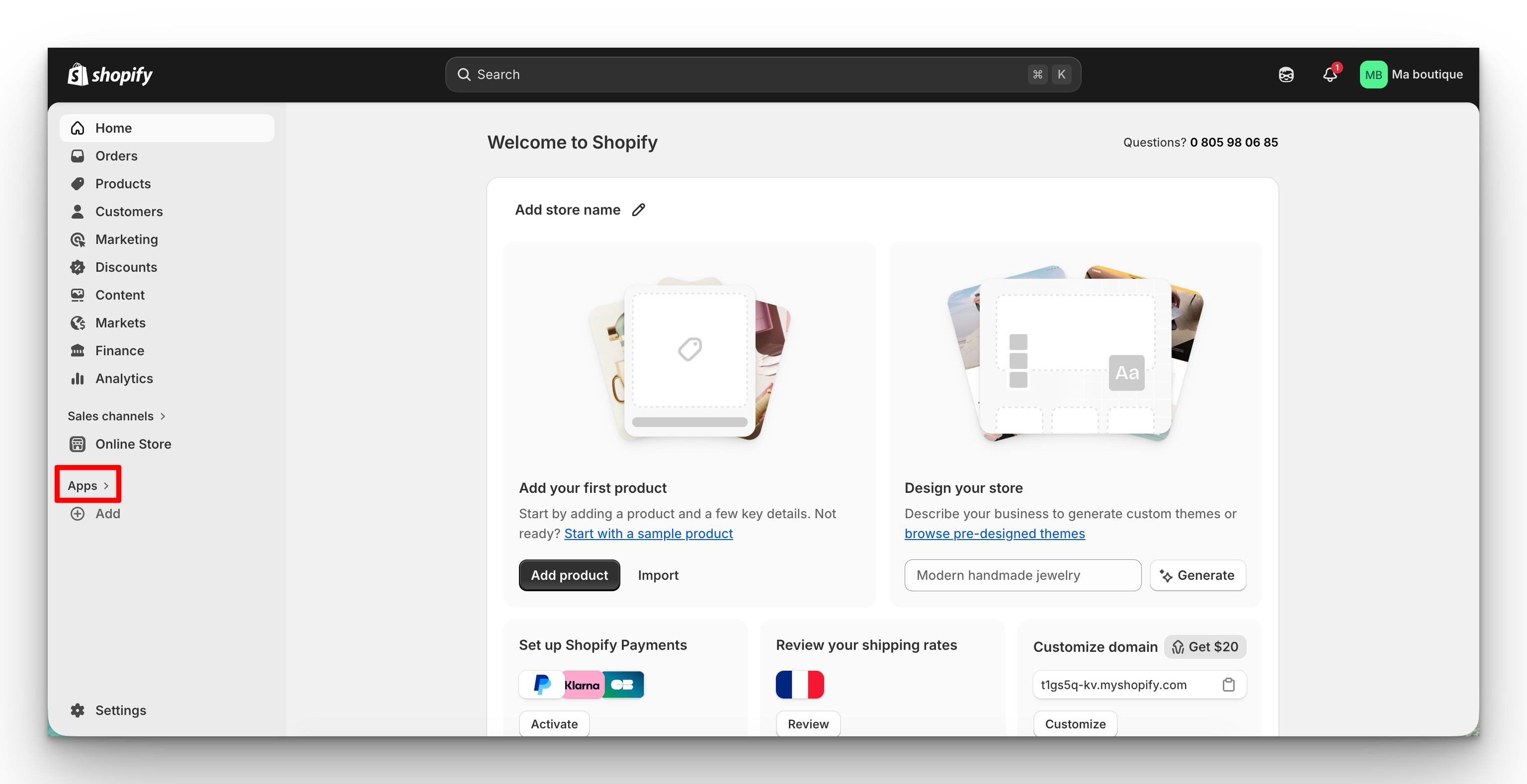
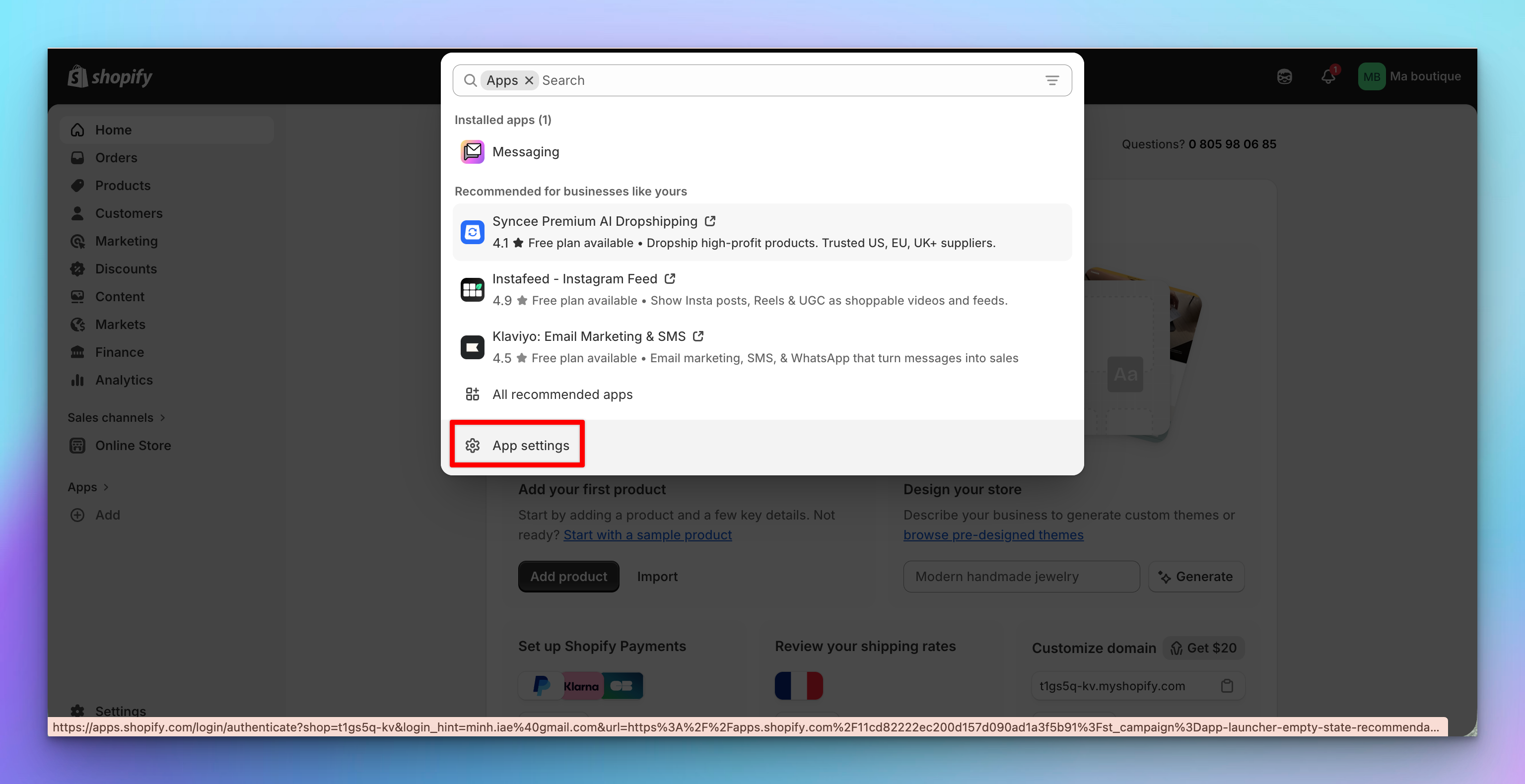
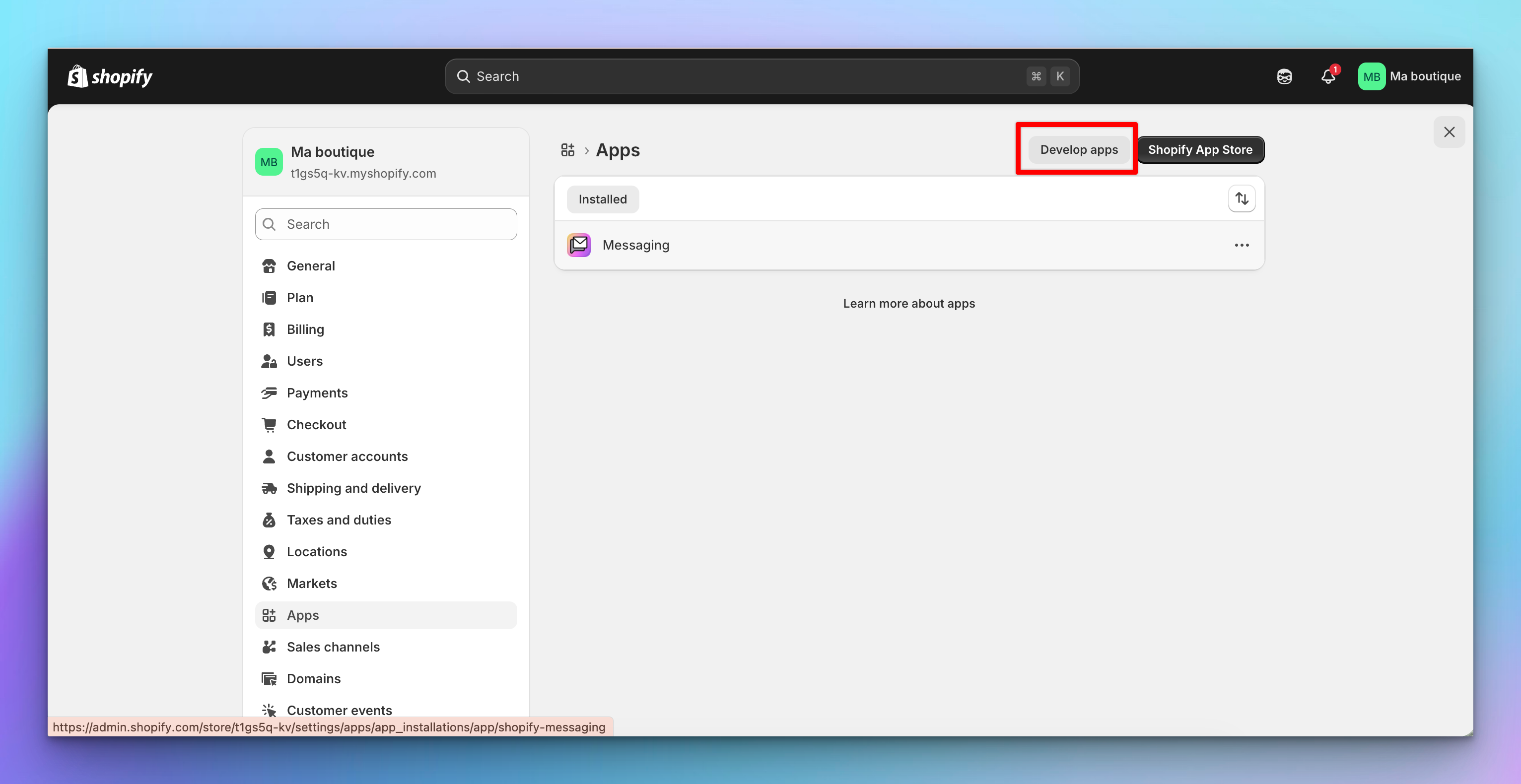
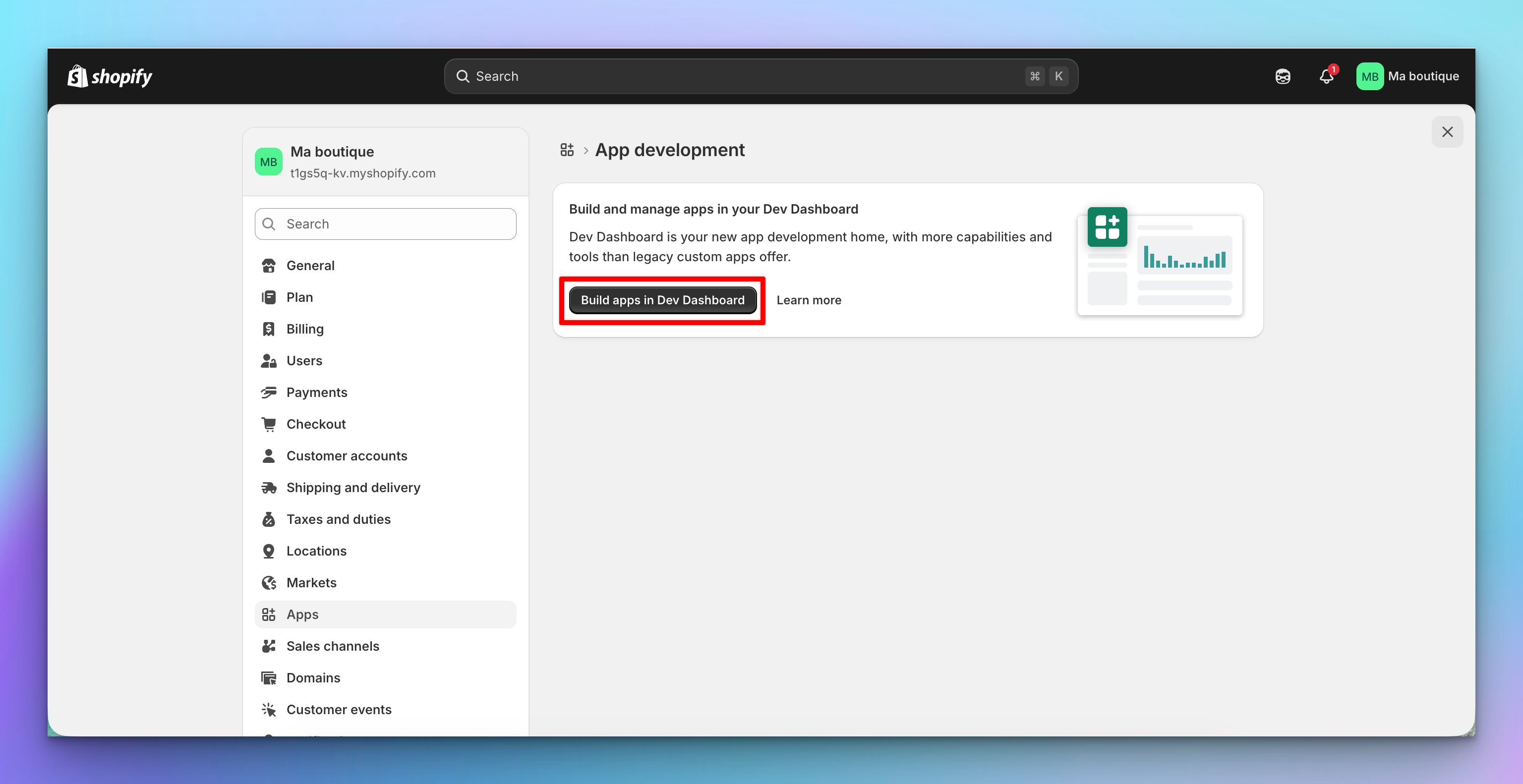
Click "Create app", give it a name (e.g. "SEOmatic"), and click "Create".
Add “https//app.seomatic.ai” for the App URL.
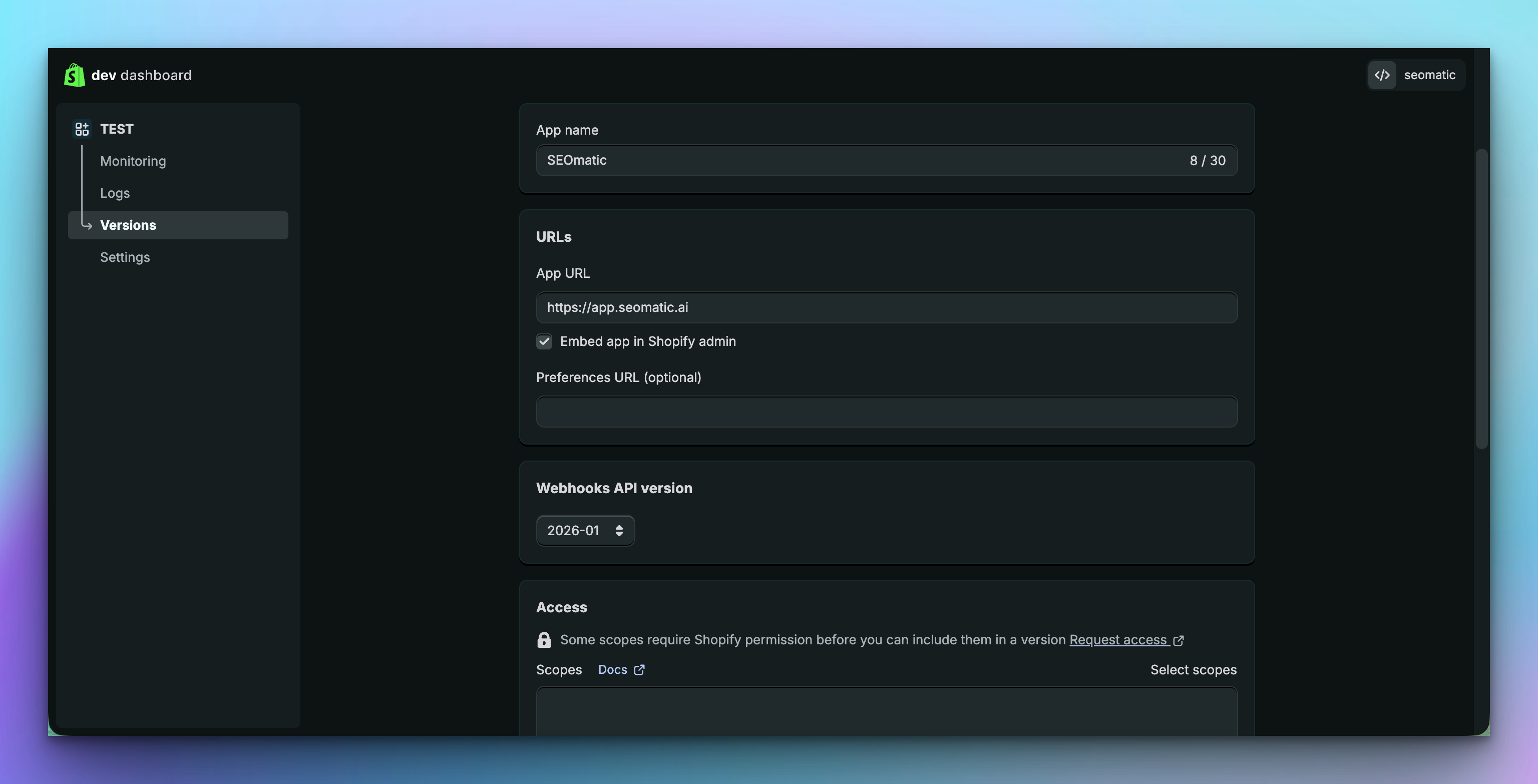
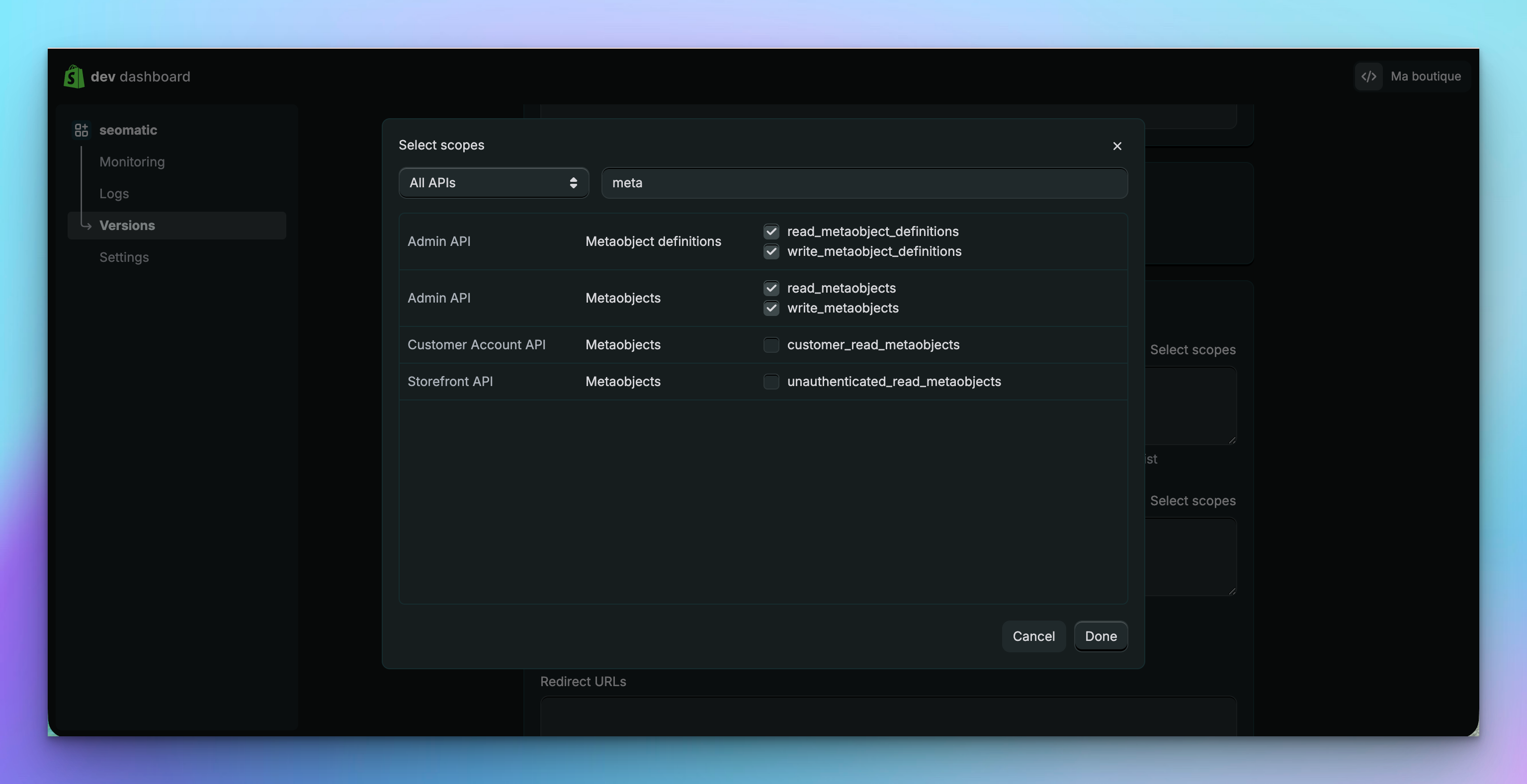
Enable the following permissions: write_content, read_content, write_products, read_products, write_publications, read_publications, write_themes, read_themes, write_metaobjects, read_metaobjects, write_metaobjects_definitions, read_metaobjects_definitions. Click "Done".
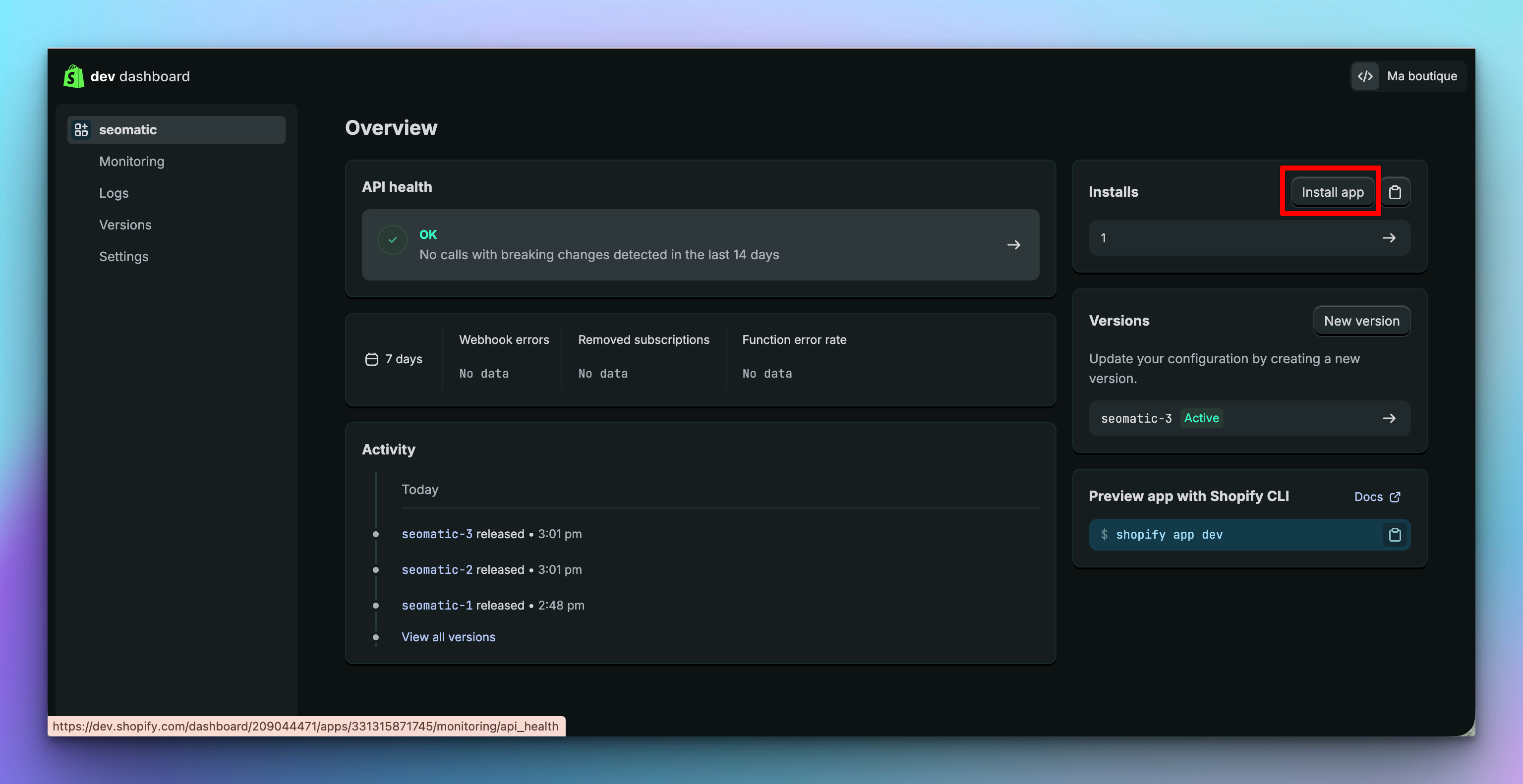
Scroll down and click "Release". A confirmation modal will appear - click "Release" again. Then click "Install app" to install it on your store.
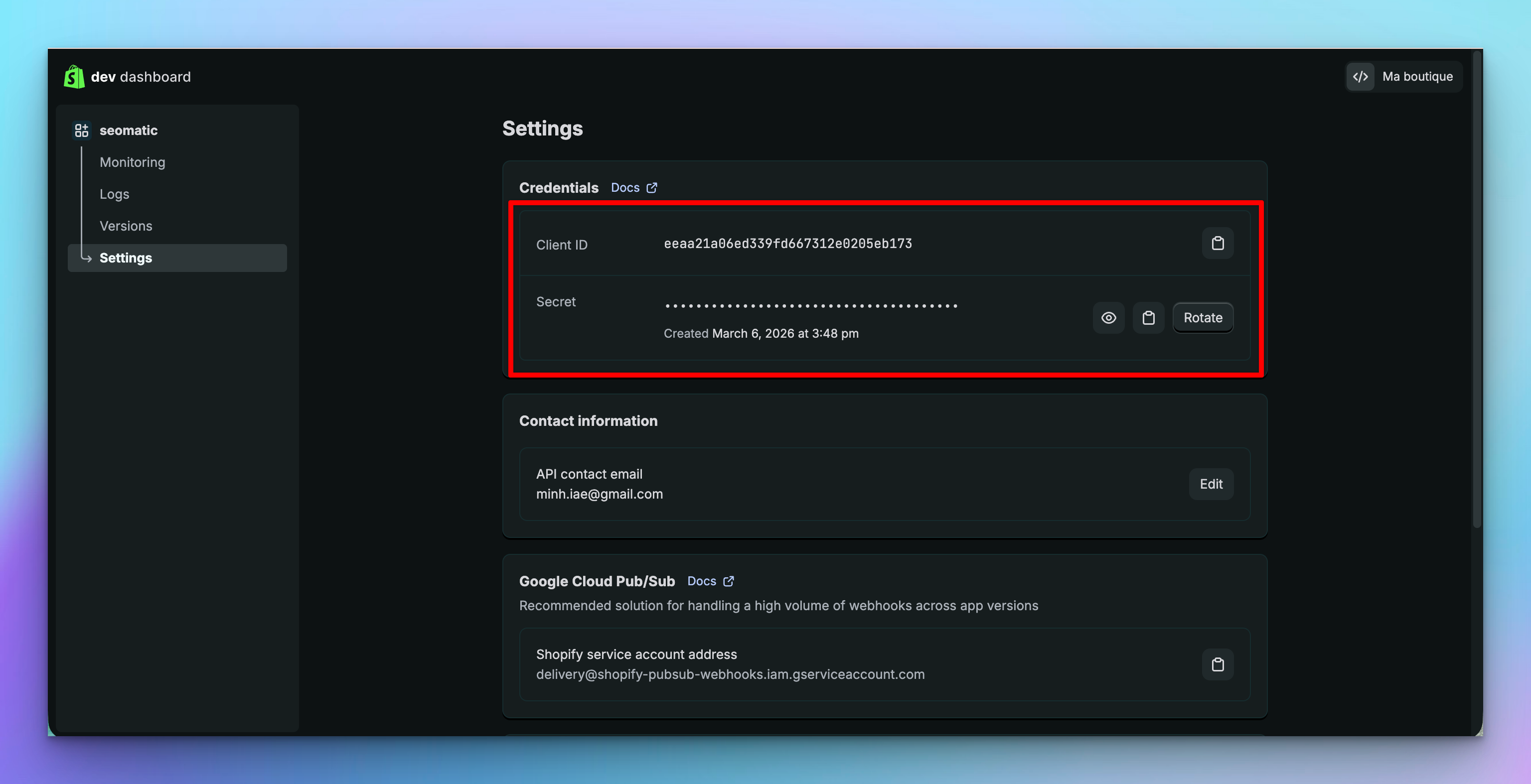
Navigate to Settings and save your Client ID and Client Secret somewhere secure. These are sensitive credentials that should not be shared with others.
Step 2: Go to Connections
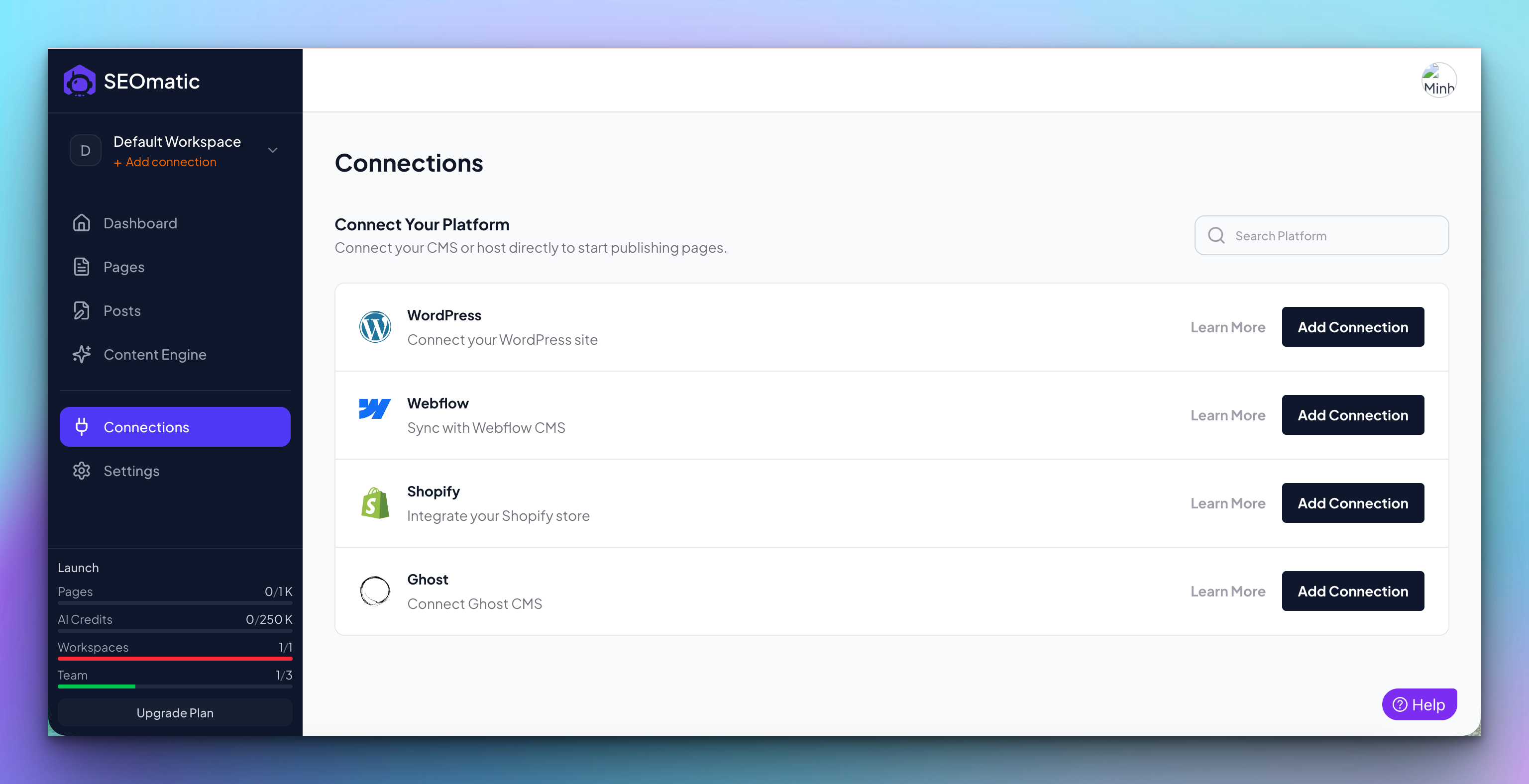
In your SEOmatic dashboard, go to Connections from the sidebar (or click the "Missing connection" warning in the header if you see one).
Step 3: Enter Your Store Details
Click Connect Shopify and fill in:
Store domain: your Shopify domain, e.g. mystore.myshopify.com
Client ID: the ID from Step 1
Client Secret: the secret from Step 1
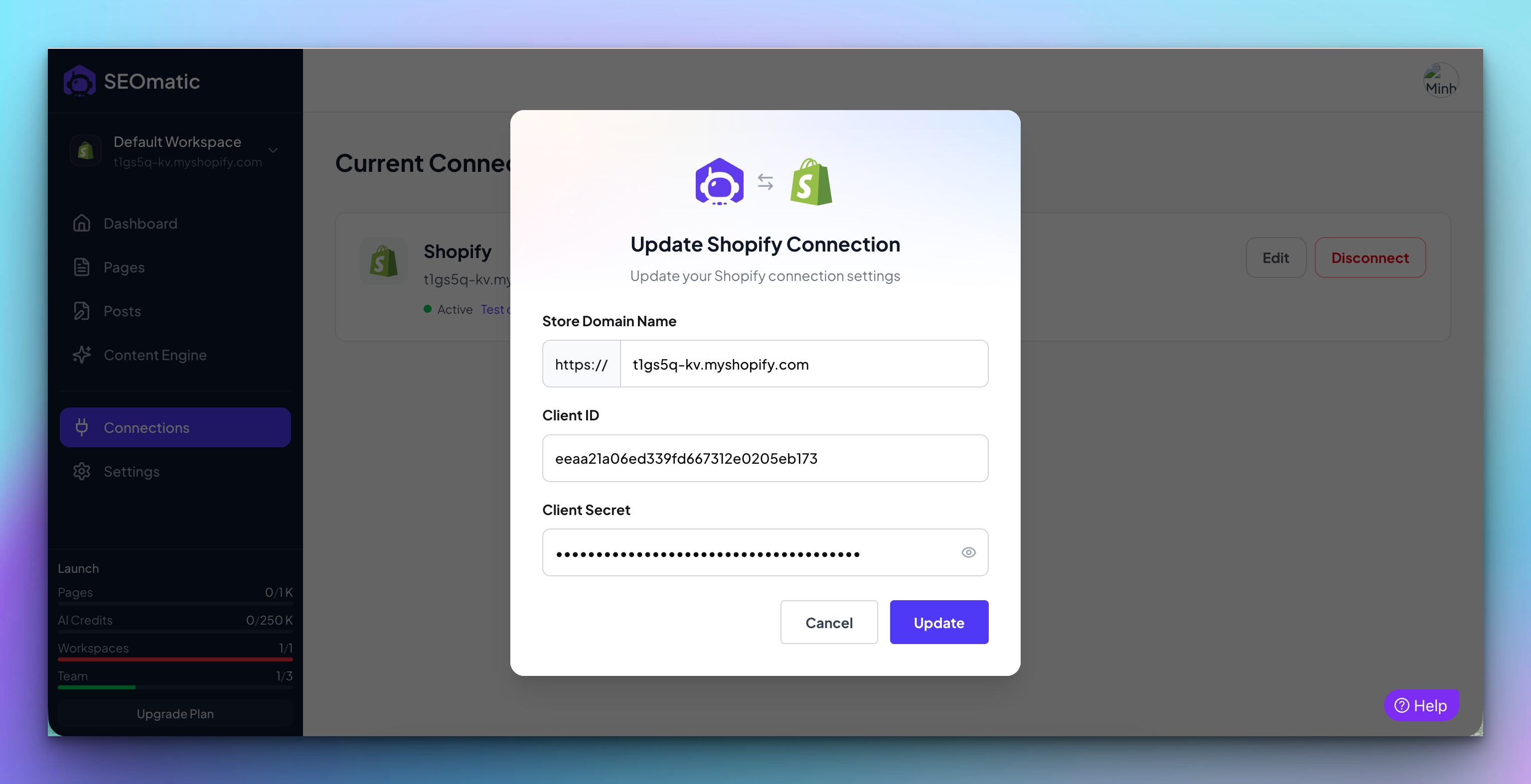
SEOmatic will automatically validate your credentials as you type. If any permissions are missing, you'll see a warning telling you exactly which ones to add.
Click Connect.
Step 4: You're Connected
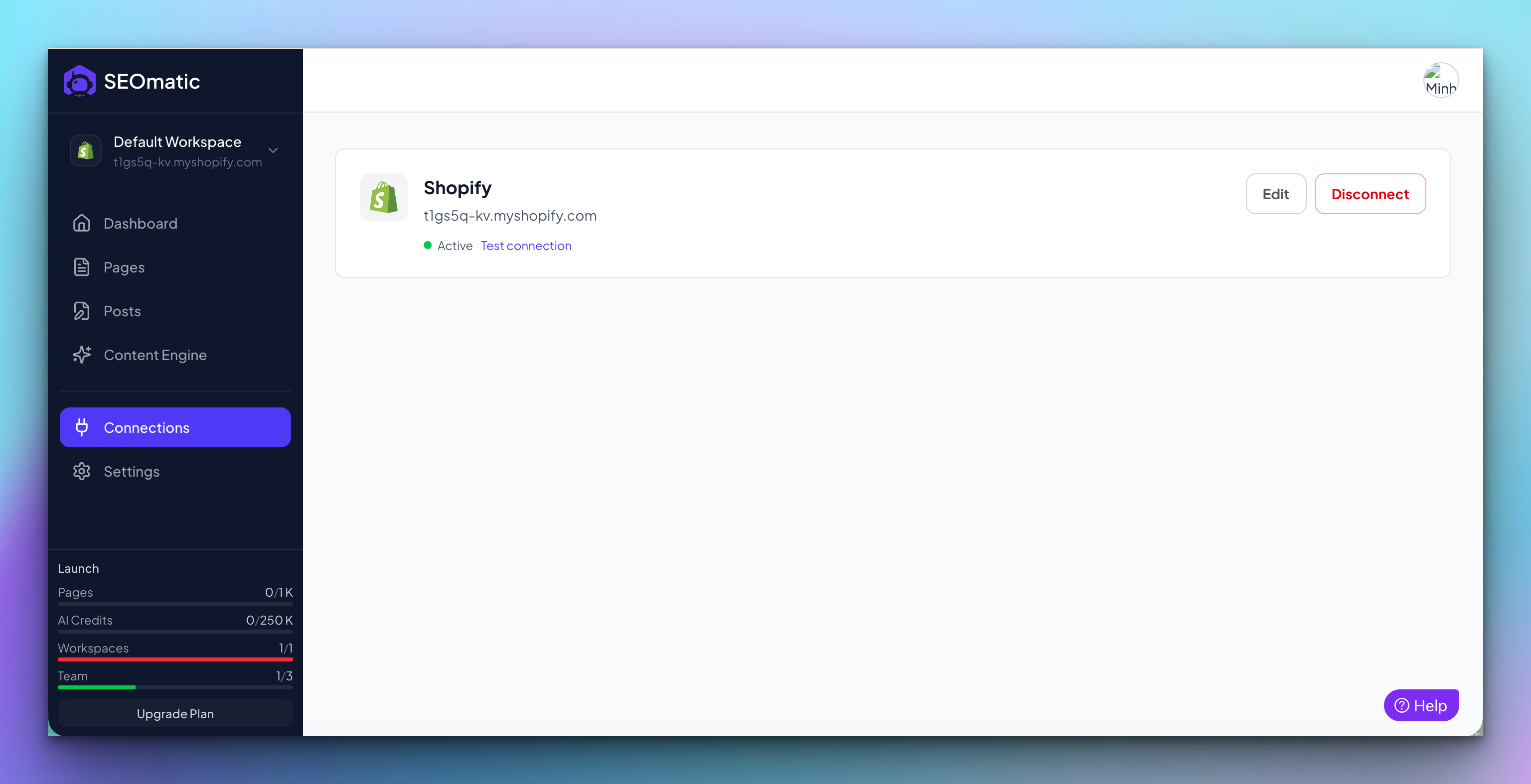
On the Connections page, you should now see your Shopify store listed with a green "active" status - that means you're connected and ready to publish.
Troubleshooting
Still need help? Share an idea