Webflow Content Not Formatting Properly
Written By Minh
Last updated 6 months ago
If your content looks like a wall of text with no line breaks in Webflow, you need to update one setting in the Webflow Designer. This is a common issue with Rich Text Elements that display CMS content.
How to Fix It
Open your page template in the Webflow Designer.
Select the Rich Text Element that displays your content.
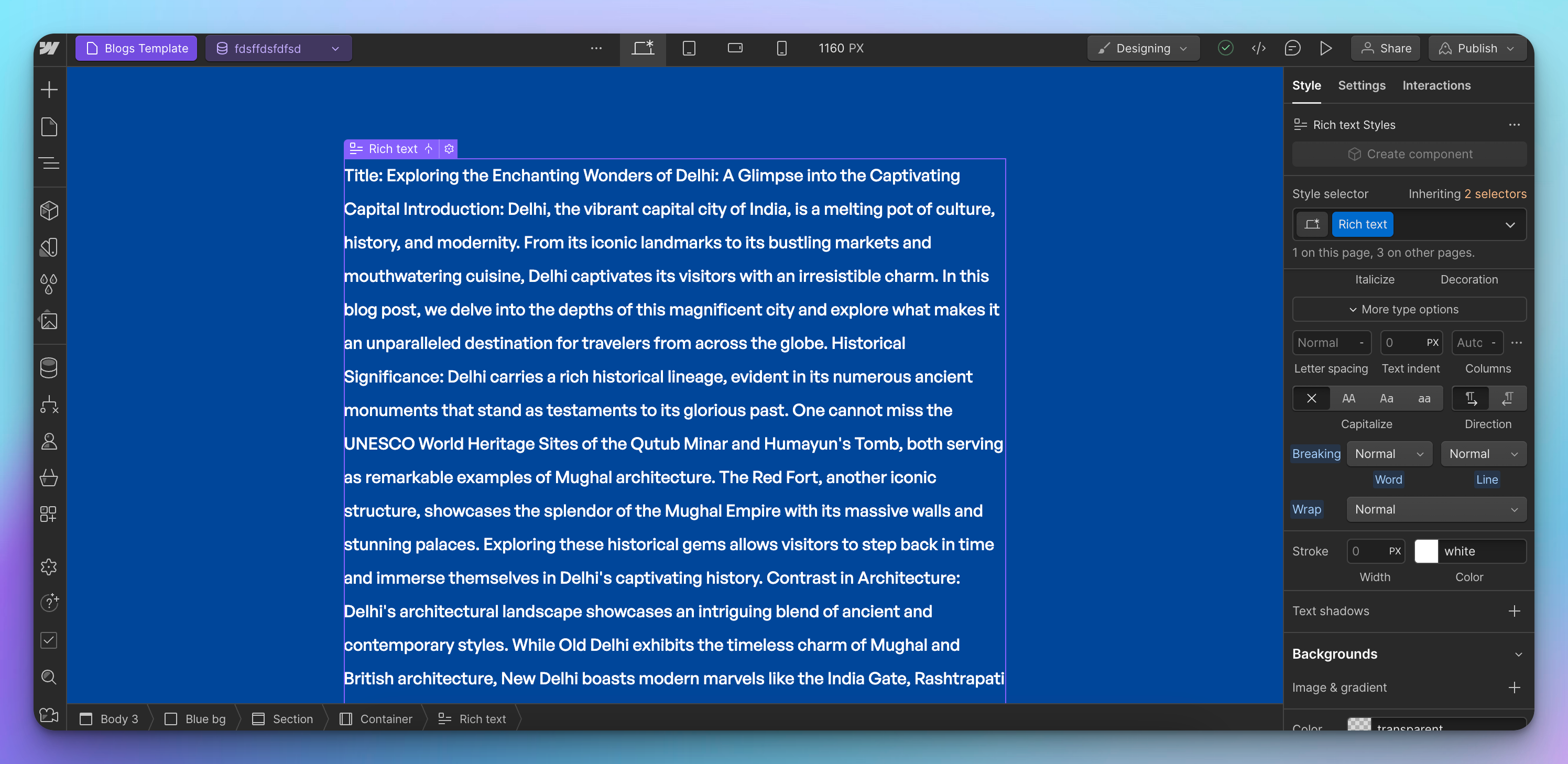
In the Style Panel on the right, go to the Typography section.
Find the Breaking property (this controls the CSS white-space setting).
Change it from "Normal" to "Break
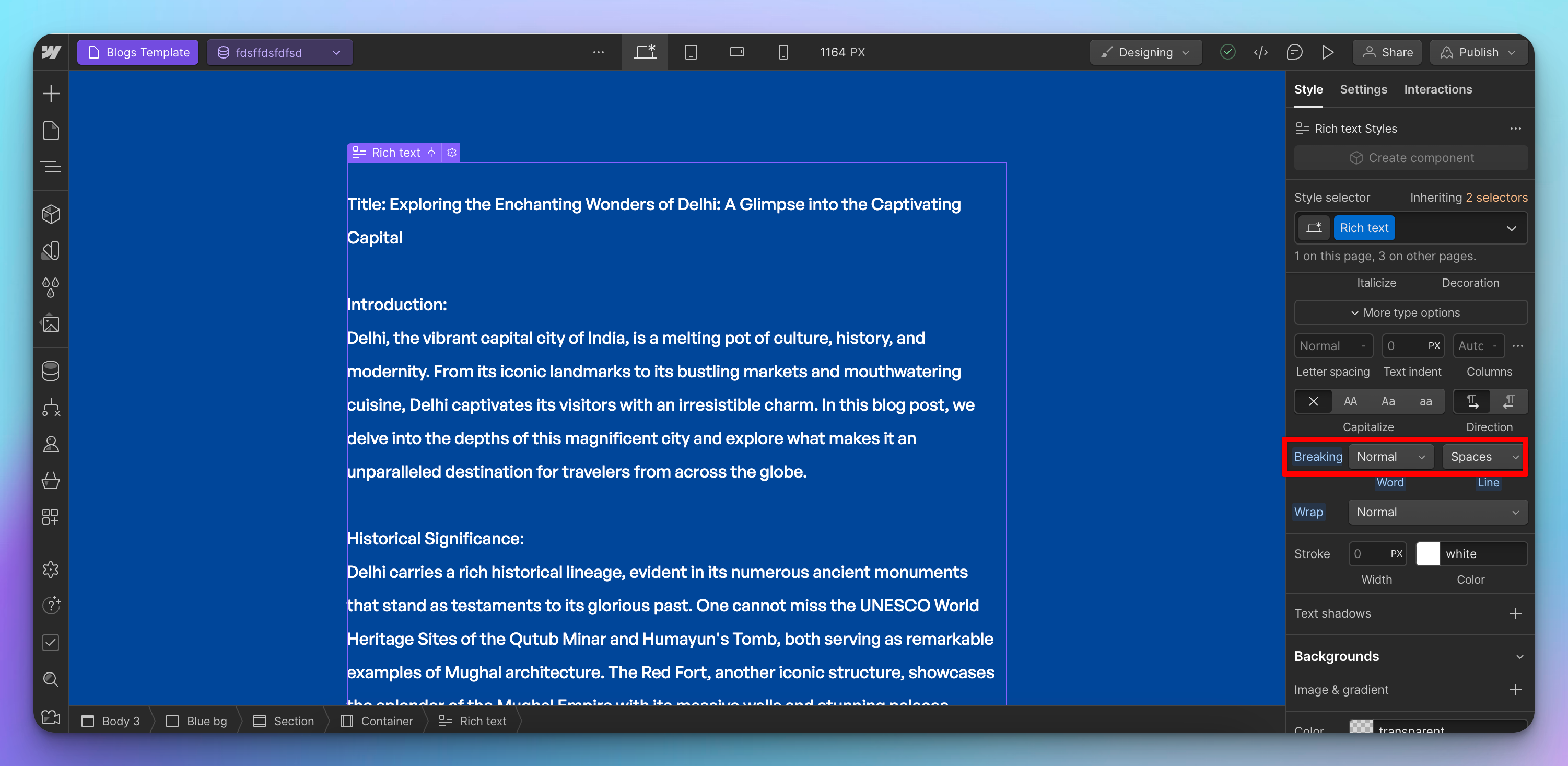
Spaces".
Your content should now display with proper line breaks and formatting.
Why This Happens
By default, Webflow's white-space property is set to "Normal," which collapses extra whitespace and ignores line breaks in your content. Changing it to "Break Spaces" tells Webflow to preserve line breaks and whitespace as they appear in your CMS data.
Still Not Working?
Check for custom CSS - If you have custom white-space rules in your project, they may override this setting. Remove them and use the Style Panel instead.
Check the field type - Make sure you're using a Rich Text field, not a Plain Text field. Plain Text strips out all formatting.
Re-publish - Changes to the Style Panel only take effect after you publish your site.
Still need help? Share an idea