How to Connect Your Ghost Site to SEOmatic
Written By Minh
Last updated 6 months ago
Minimum Requirements
A Ghost site running version 5.0 or higher
Administrator access to your Ghost admin panel
Generating Your Admin API Key
Before connecting, you need to create a custom integration in Ghost.
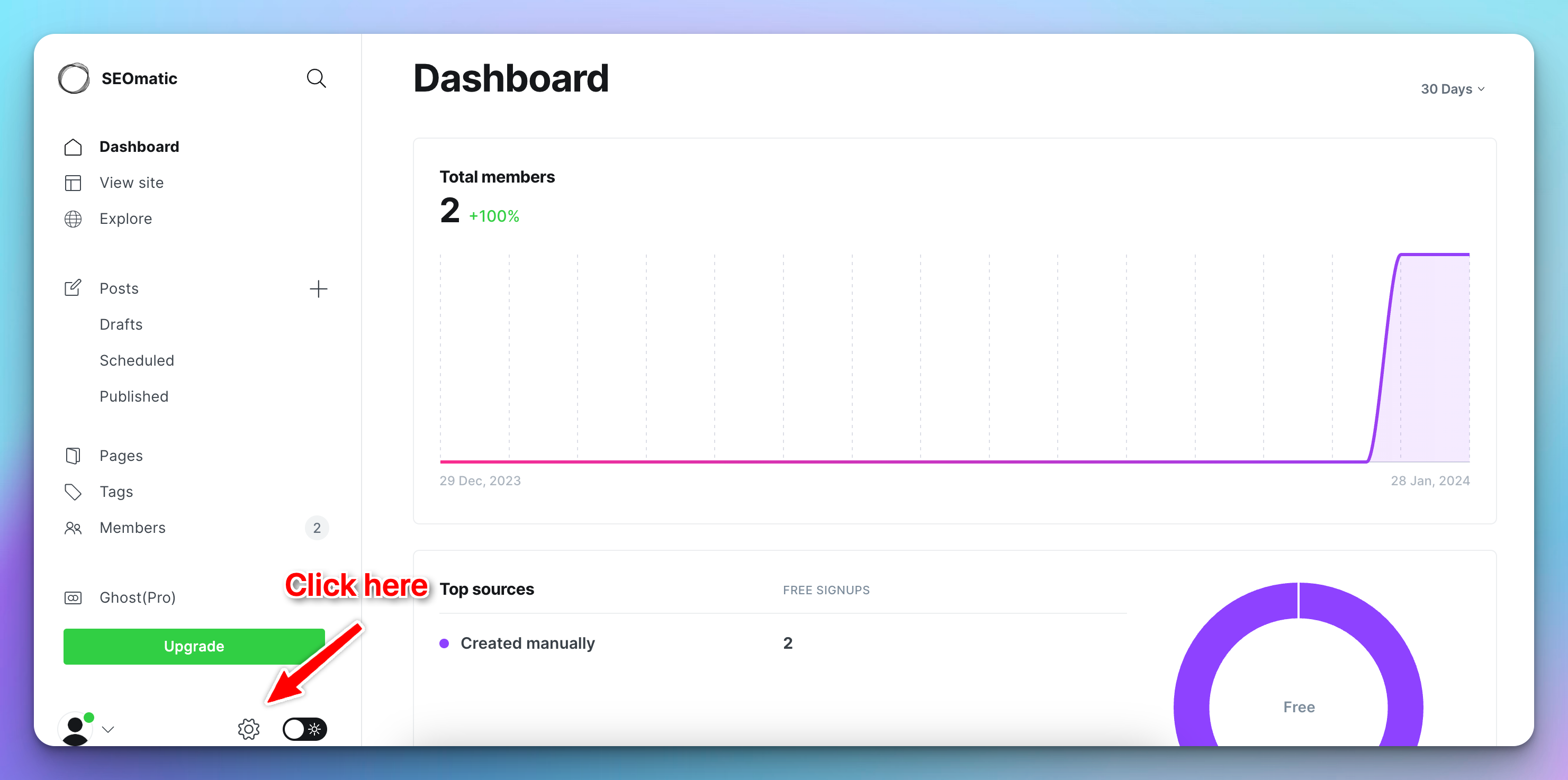
Log in to your Ghost admin panel (e.g. yoursite.ghost.io/ghost).
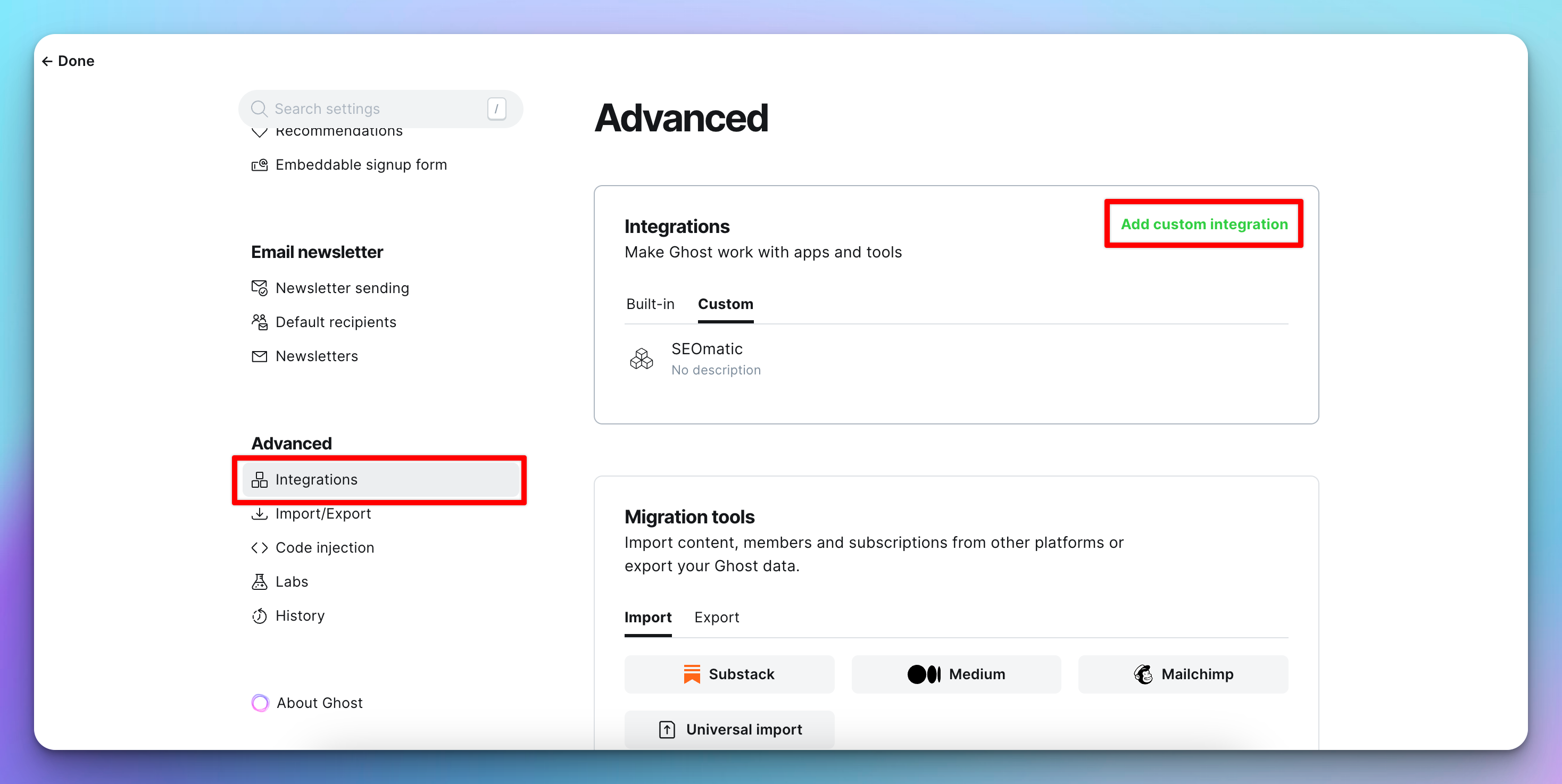
Go to Settings > Integrations.
Click "Add custom integration".
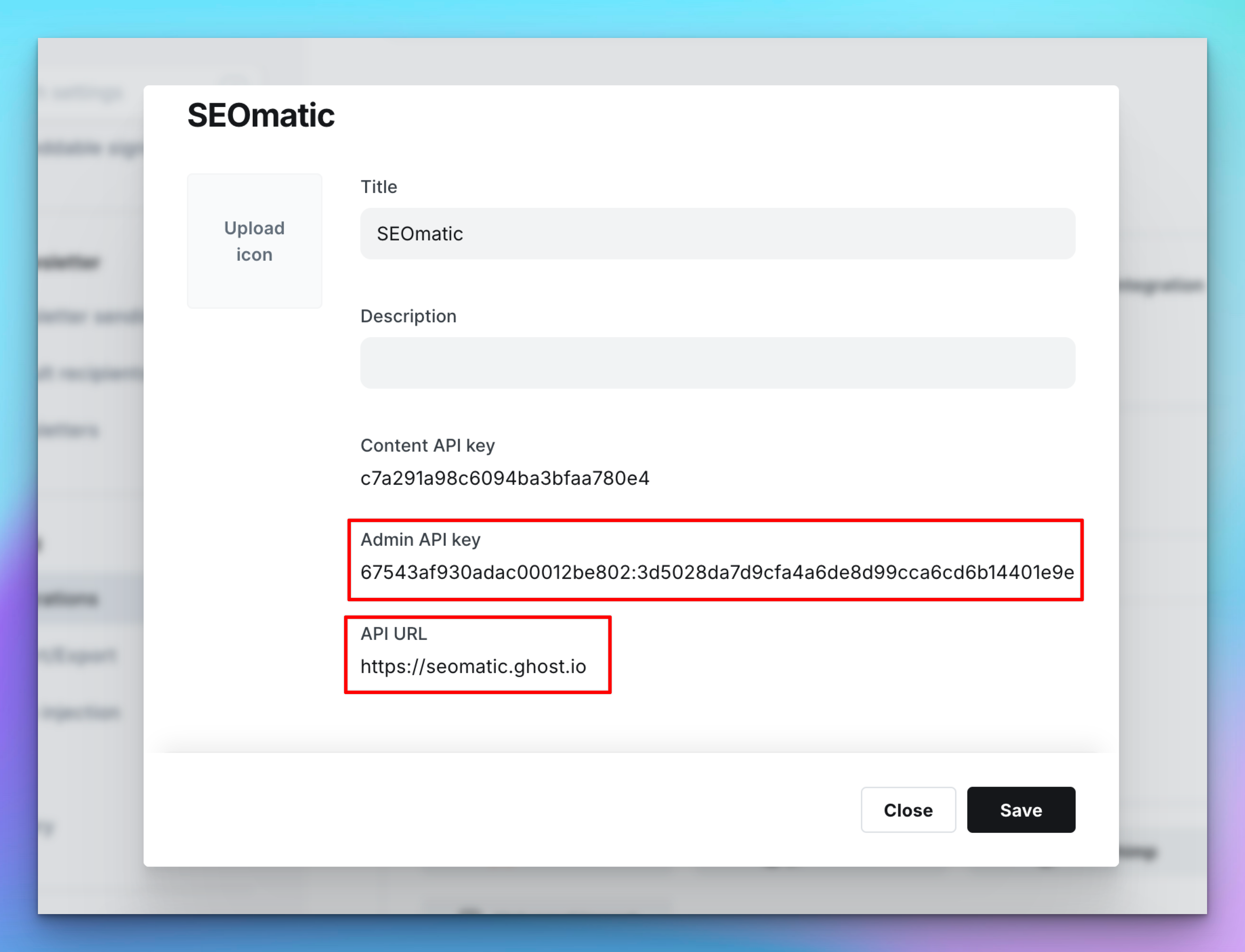
Name it (e.g. "SEOmatic") and click "Create".
Copy the Admin API Key. Save it somewhere secure.
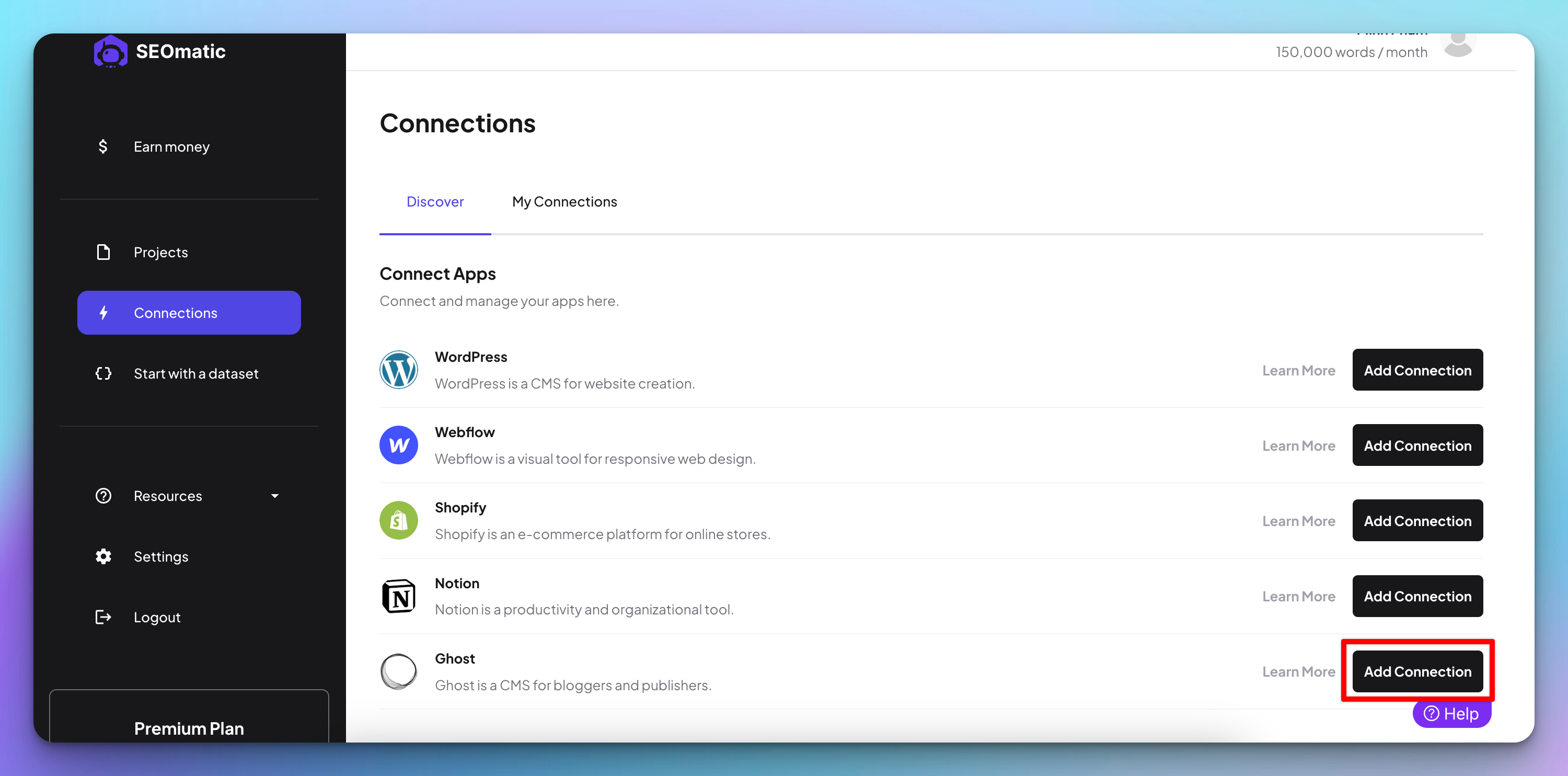
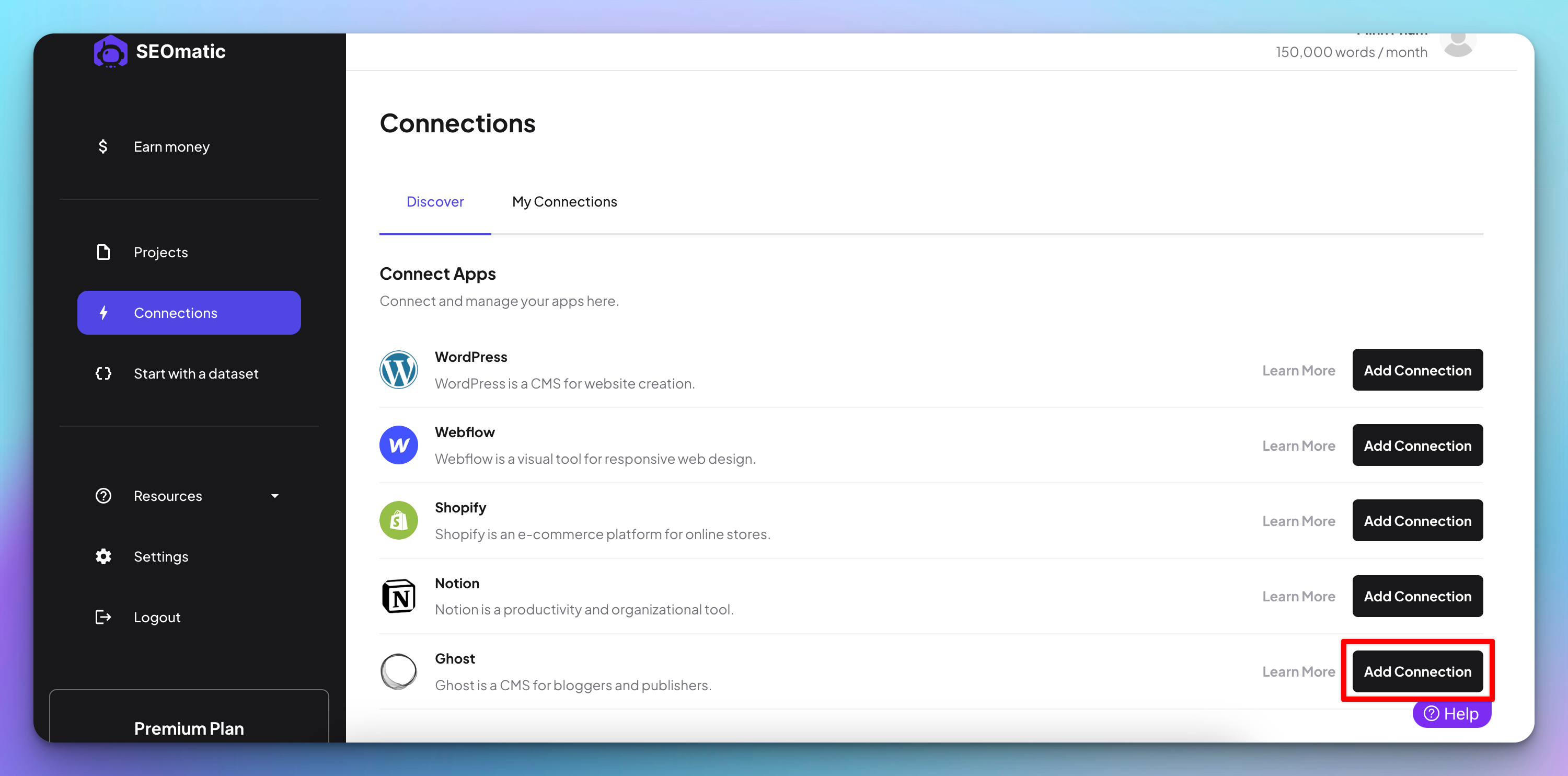
Step 1: Go to Connections
In your SEOmatic dashboard, go to Connections from the sidebar (or click the "Missing connection" warning in the header if you see one).
Step 2: Enter Your Credentials
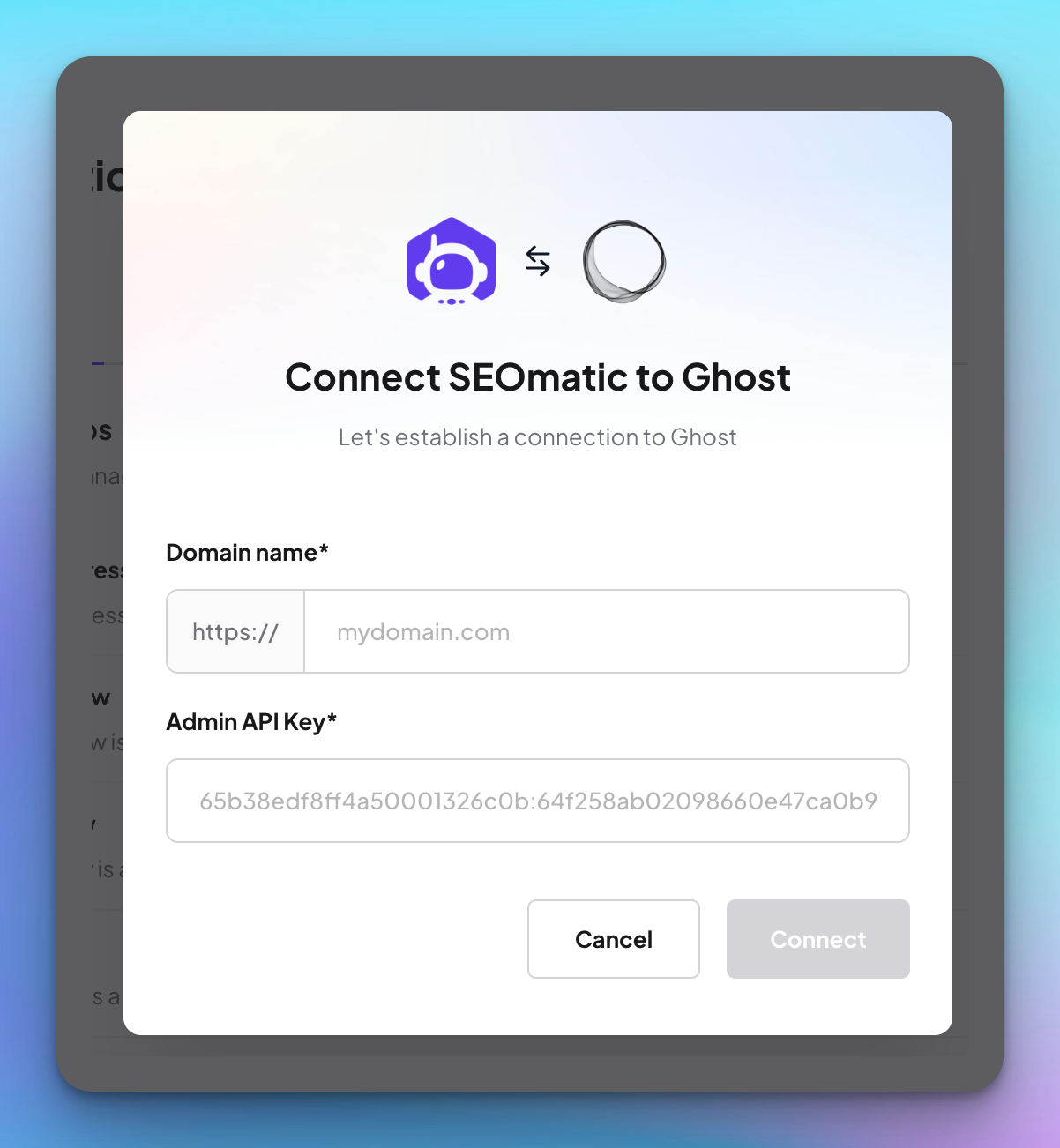
Click Connect Ghost and fill in your site domain (e.g. yoursite.ghost.io) and your Admin API Key from the integration you just created.
SEOmatic will automatically validate your credentials as you type.
Click Connect.
Step 3: You're Connected
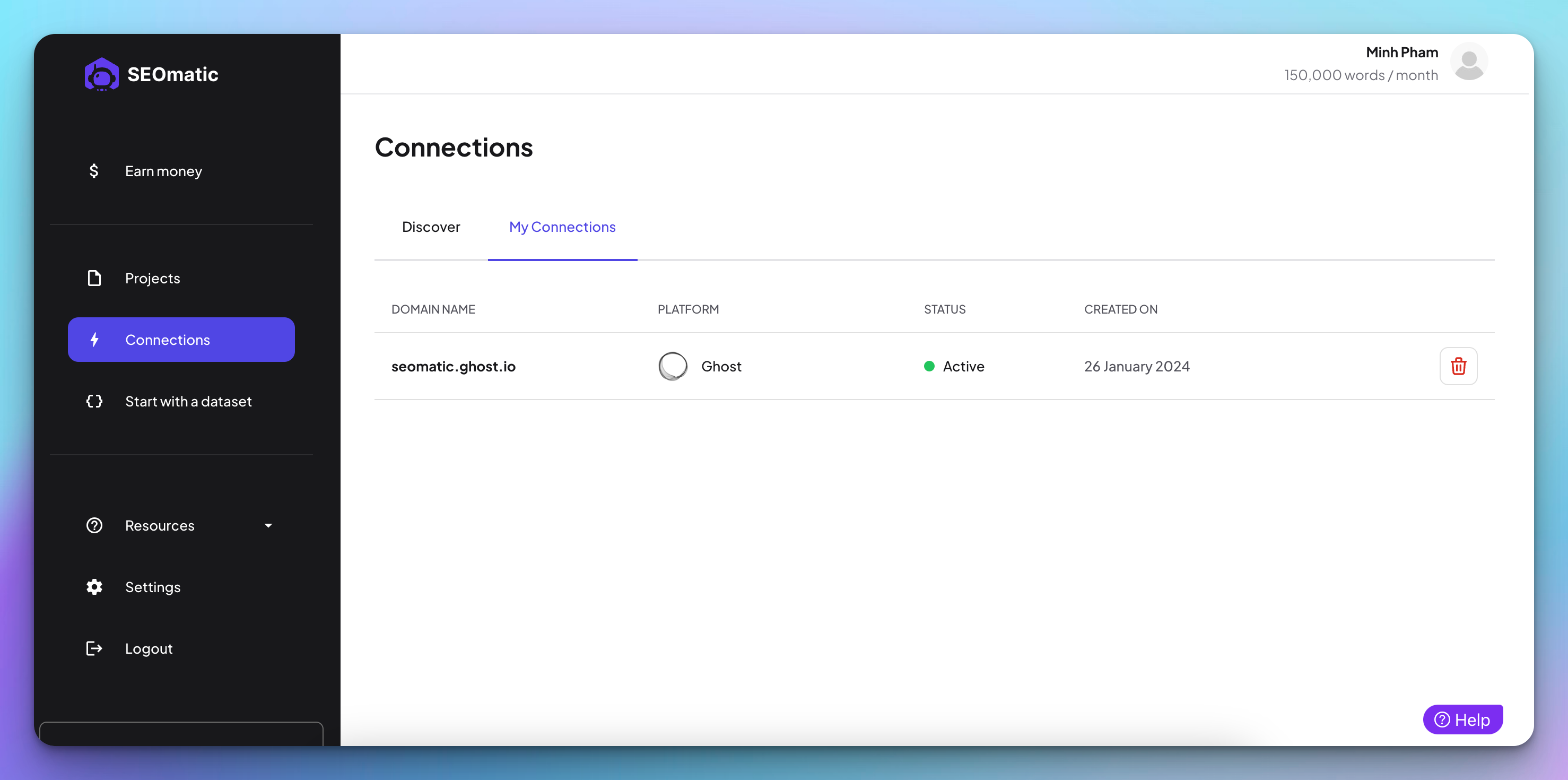
On the Connections page, you should now see your Ghost site listed with a green "active" status - that means you're connected and ready to publish.
Troubleshooting
Still need help? Share an idea